Receiving adds stock and records what it cost. You cannot edit a receipt afterwards.
Before you start
- The supplier is already added.
Steps
-
Click Buy > Goods received, then Receive goods.
You should see: The Receive goods page, with Delivery details.
-
Click Choose a supplier and pick one. Type the Delivery note no. and check Received on.
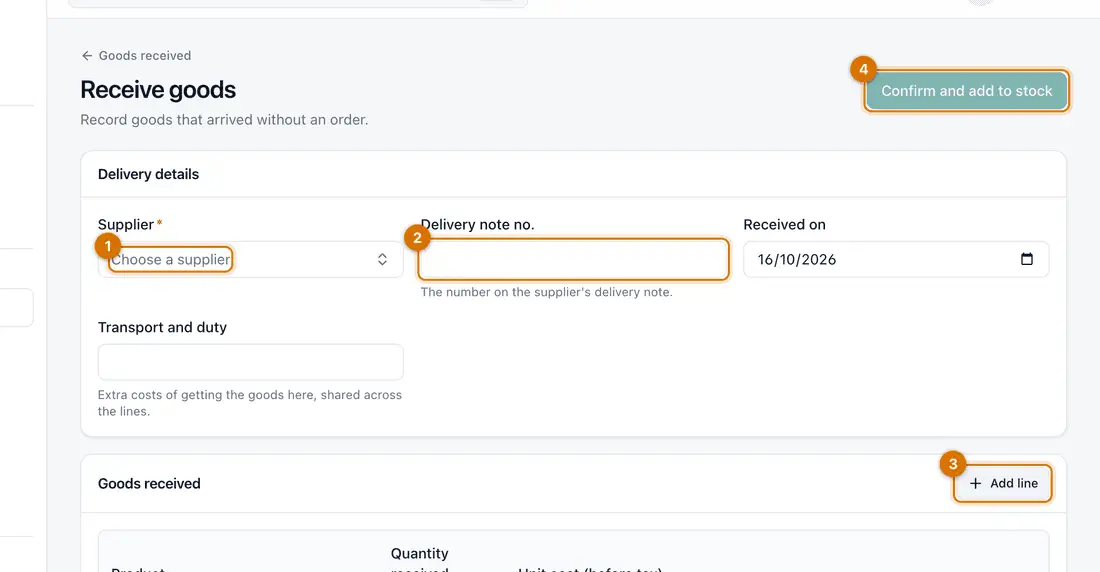
- Supplier
- Delivery note no.
- Add line
- Confirm and add to stock
-
Choose Receive into: the location that will hold the goods.
-
If the supplier charged transport or duty on the whole delivery, type it in Transport and duty.
-
Click Add line, then Choose a product. Type the Quantity received and the Unit cost (before tax). Repeat for each product.
-
Click Confirm and add to stock.
You should see: A receipt such as GRN-MAIN-000001 opens as Posted. Stock levels now shows the new quantity.

If something goes wrong
I received the wrong quantity
Open the receipt and click Return goods for the extra. Or fix the count with a stock adjustment.
I cannot find the product
Add it first: Add your products.
The goods came with an order
Start from the order instead and the quantities are filled in for you: Receive goods against a purchase order.
Still stuck? See Fix common problems.