Steps
-
Click Stock > Stock levels.
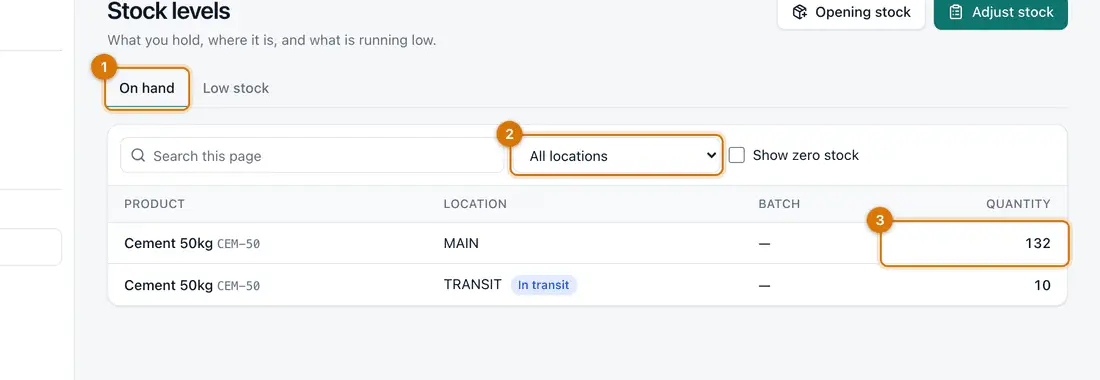
- On hand and Low stock tabs
- Filters
- Quantity
You should see: The Stock page, with the tabs On hand and Low stock.
-
Pick a Branch or Location to look at one place. Type in Search this page to find a product.
-
Tick Show zero stock to include products you have run out of.
-
Click the Low stock tab.
You should see: Products at or below the Reorder level set on them.
-
To see why a number is what it is, click Stock > Stock movements.
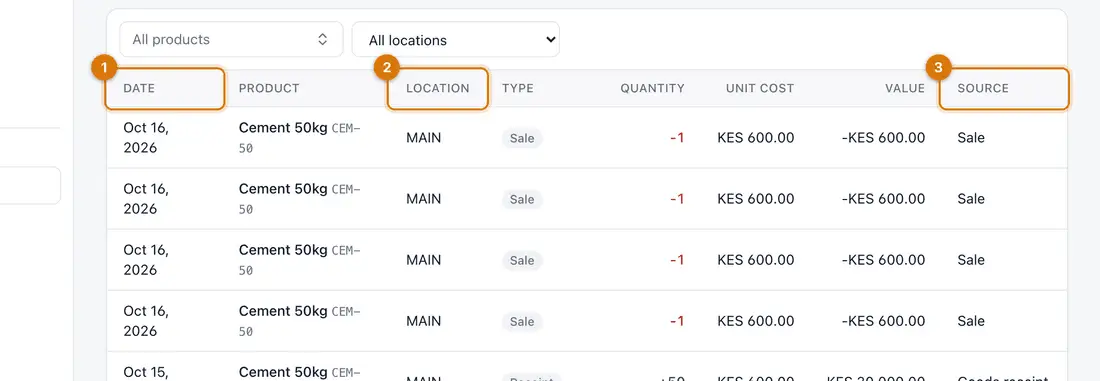
- Kind of movement
- Quantity change
- Date and who
You should see: Every sale, receipt, transfer, adjustment and count, with its date and quantity.


If something goes wrong
A product is missing from the list
It may have no stock. Tick Show zero stock. It may also be at another location.
Low stock shows nothing, but I am short
The product has no Reorder level. Open it from Stock > Products and set one.
The quantity looks wrong
Open Stock movements and look for a receipt, sale or adjustment you did not expect. Fix a wrong count with an adjustment.
Still stuck? See Fix common problems.