You see only the parts you switched on and your role allows.
Steps
-
Look at Home, the first page after you sign in. The Getting started card lists your first jobs. Click Open beside one to go straight there.
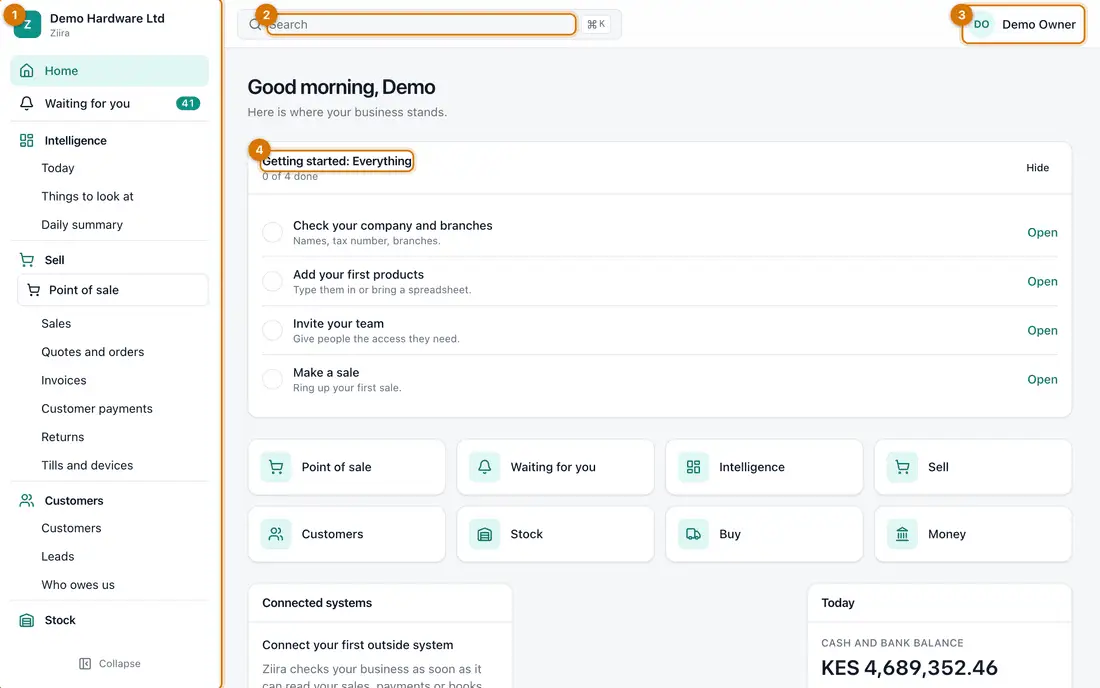
- Left menu
- Search
- Your account menu
- Getting started checklist
You should see: A greeting, your checklist and figures for today.
-
Look at the left menu. It is grouped by job: Waiting for you, Intelligence, Sell, Customers, Stock, Buy, Money, People, Connected systems, Add-ons and Settings. Click a group to open its pages.
On a phone, the Menu button at the top opens it. Click Collapse at the bottom to make the menu narrow.
-
Click Search at the top, or press Ctrl and K together (Cmd and K on a Mac). Type part of a page, product or customer name.
You should see: Matches appear. Press Enter to open one.
-
Click Sell > Point of sale to open the till. Click Back to office to return.
You should see: The till fills the whole screen. Cashiers usually work here.
-
Click your name at the top right.
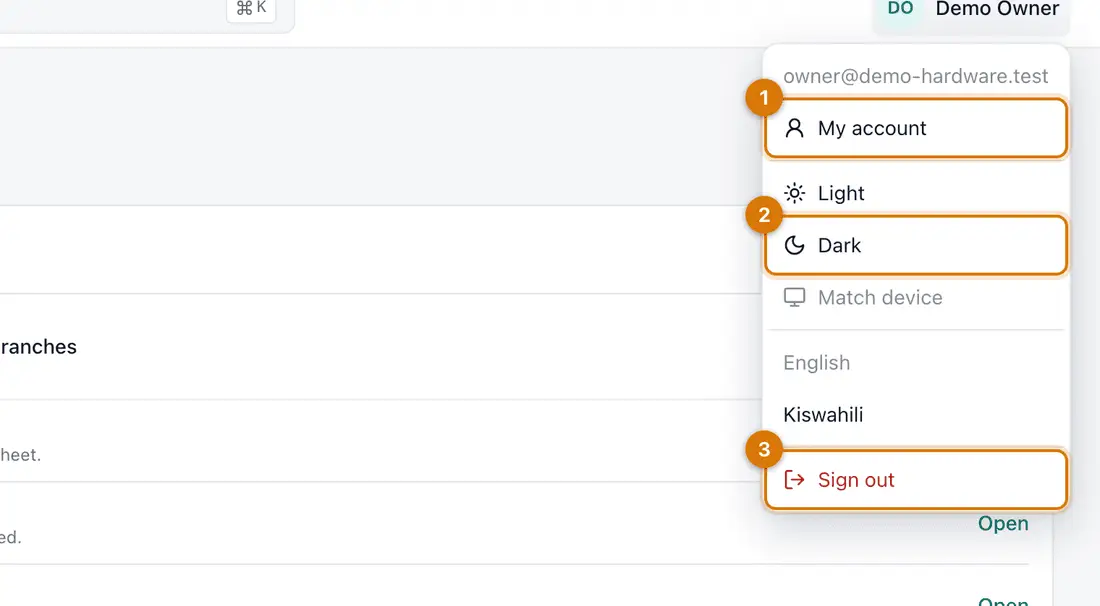
- My account
- Theme
- Sign out
You should see: A menu with My account, Light, Dark and Match device for the look of the screens, the language, and Sign out.


If something goes wrong
A menu group is missing
Either that part is switched off (click Add-ons to check) or your role does not allow it. Ask the owner.
I opened the till by mistake
Click Back to office at the top left. Nothing is saved until you complete a sale.
Still stuck? See Fix common problems.