Steps
-
After paying, click Print receipt on the Sale complete screen.
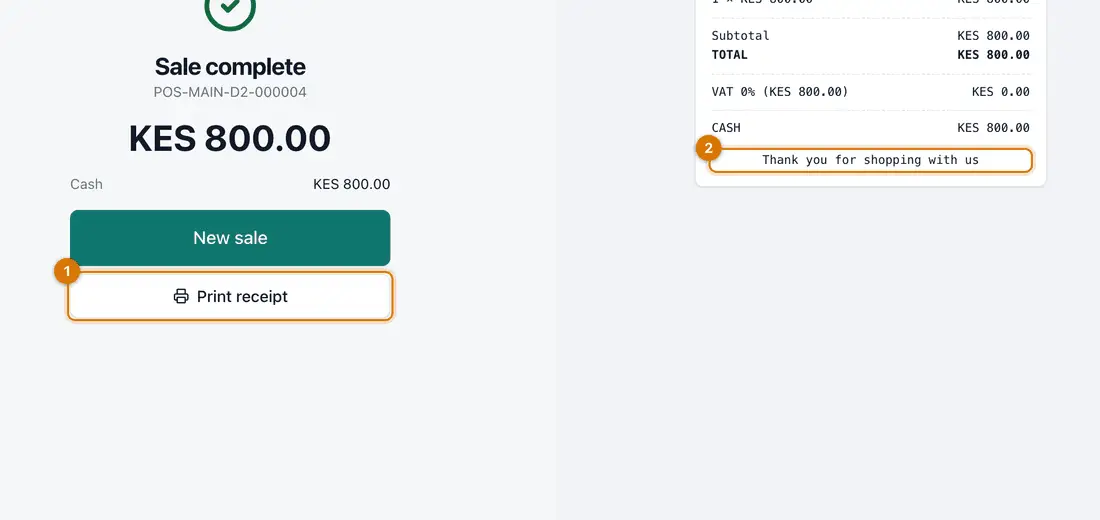
- Print receipt
- The receipt
You should see: Your browser's print window opens.
-
Choose your printer and click Print. To keep a file instead, choose Save as PDF as the destination.
-
To reprint later, click Sell > Sales and click the sale. Search by Receipt number or Business date.
You should see: The sale opens with its items, payments and totals.
-
Click Receipt, then print as in step 2.
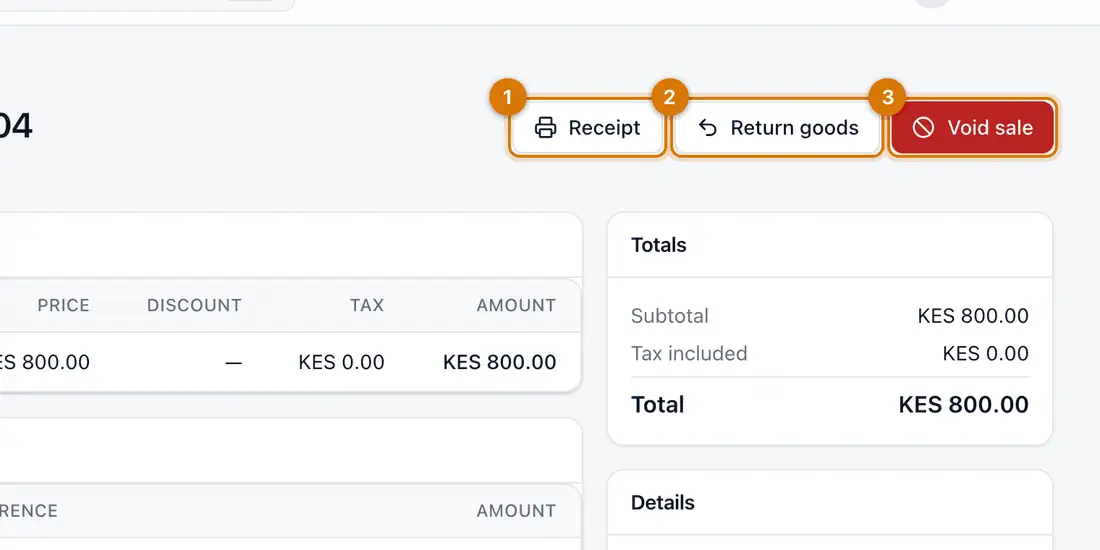
- Receipt
- Return goods
- Void sale


If something goes wrong
Nothing prints
Check the printer is chosen in the print window and has paper. Try Save as PDF to check the receipt itself.
The footer text is wrong
Click Settings > Selling settings, change the Receipt footer and click Save. It applies to new receipts.
A receipt number starts with OFFLINE
The sale was made with no connection. The final number is given when it is sent: see Sell offline.
Still stuck? See Fix common problems.