Before you start
- An account with an email or SMS service, and the details it gives you.
Steps
-
Click Settings > Email and SMS.
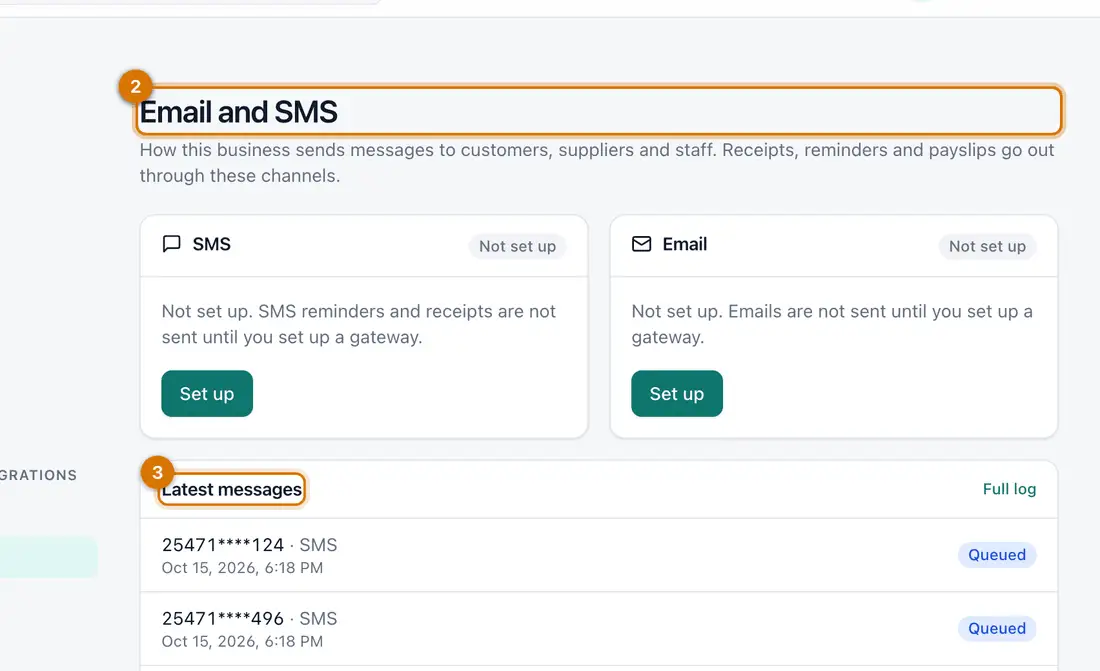
- SMS
- Latest messages
You should see: Cards for SMS and Email, each Not set up until you set it up, and a list of Latest messages.
-
On Email, click Set up. Choose the Gateway (SMTP, Brevo, Resend or SendGrid), fill in what it asks for and the Sender email address, and click Save.
Keys and passwords are stored encrypted and are never shown again.
-
Click Send a test, type your own address and send it.
You should see: The message appears in Latest messages as Sent, or Failed if the details are wrong.
-
Do the same for SMS.
-
Click Settings > Notifications. Sent messages lists each message and its status: Queued, Sent, Failed or Skipped. Do not contact lists people who asked not to be messaged.

If something goes wrong
Messages stay Queued
The channel is not set up, or the background worker that sends messages is not running. Ask your Ziira administrator.
A message shows Failed
Check the gateway details and send a test again. Ziira retries failed messages a few times.
A customer gets messages they do not want
Open the customer, click More and choose Do not contact.
Still stuck? See Fix common problems.