Reports come straight from your sales, purchases, expenses and payroll.
Steps
-
Click Money > Financial reports.
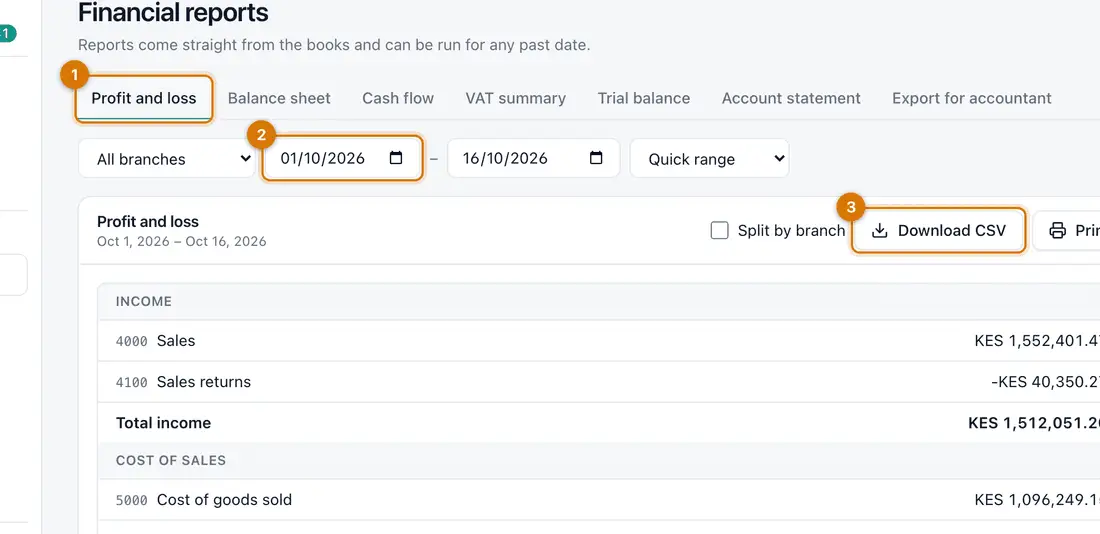
- Report tabs
- Branch and dates
- Download CSV and Print
You should see: A row of reports with the one you chose below it.
-
Click a report: Profit and loss, Balance sheet, Cash flow, VAT summary, Trial balance or Account statement.
-
Choose the Branch. Set From and To, or pick a Quick range.
You should see: The figures update.
-
Tick Split by branch on the profit and loss to see each branch in its own column.
-
Click Download CSV or Print. For your accountant, click Export for accountant.

If something goes wrong
A figure looks wrong
Open Money > Accounting and look at the entries behind it. A common cause is an expense in the wrong category.
The balance sheet does not balance
Ask your accountant before changing anything. Mistakes are corrected by new entries, not by editing old ones.
The VAT summary is empty
Tax codes must be set up and used on your products.
Still stuck? See Fix common problems.