Steps
-
Click Buy > Suppliers, then New supplier.
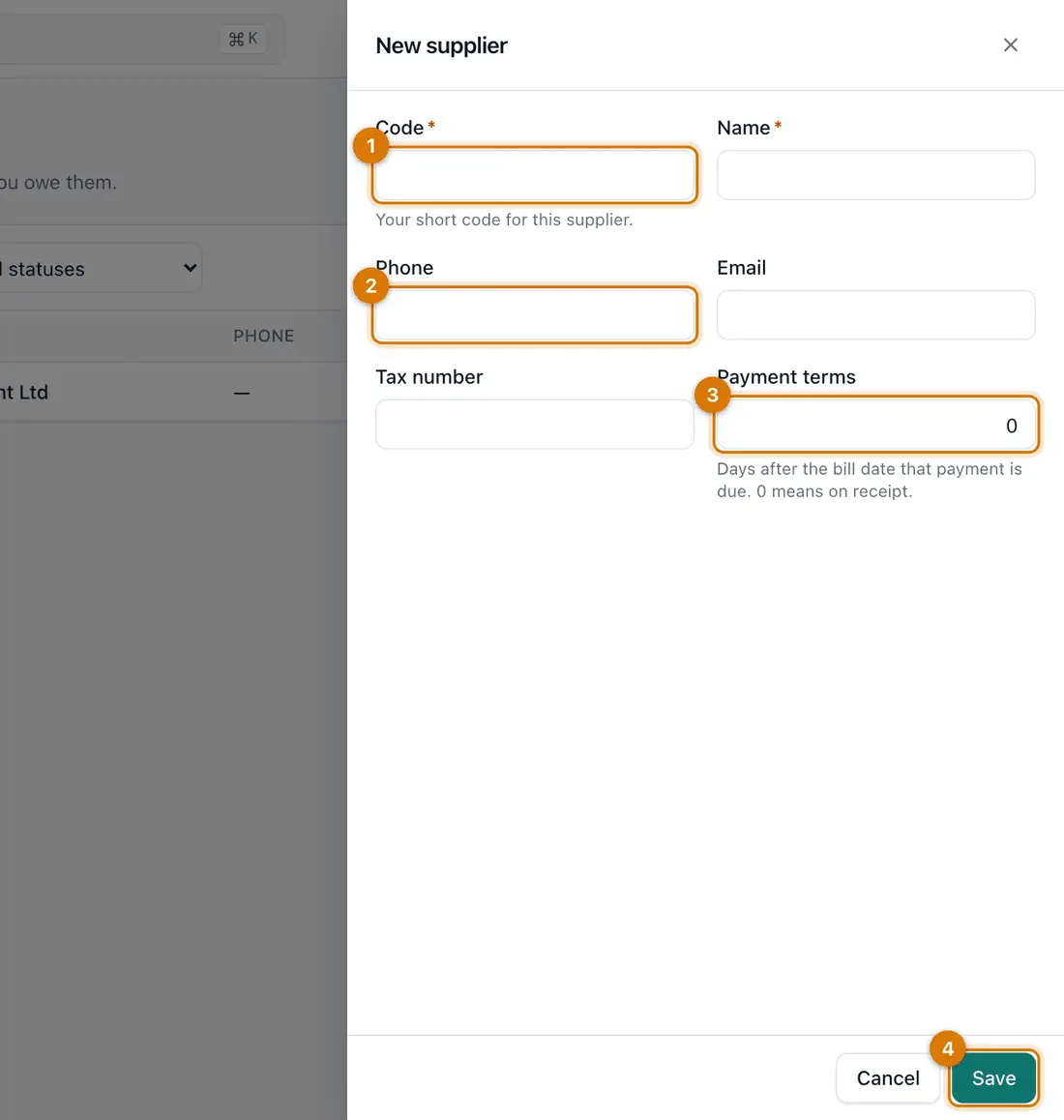
- Code and name
- Contact details
- Payment terms
- Save
You should see: The New supplier drawer opens.
-
Type a short Code (for example
SAV) and the Name. Add the Phone, Email and Tax number if you have them. -
Type the Payment terms: the days you have to pay (for example
30). Click Save.You should see: The supplier appears in the list as Active.
-
To pay them electronically later, open the supplier and click the Payment details tab. Click Propose new details.
A second person must confirm the details with the supplier, then approve them. This stops payments being redirected.

If something goes wrong
The code already exists
Each supplier needs its own code. Add a number, for example SAV2.
I added the same supplier twice
Open the extra one and set its status to Inactive. Do not delete it.
I do not see Buy in the menu
The Purchasing add-on is off, or your role does not allow it. Ask the owner.
Still stuck? See Fix common problems.