Before you start
- Your statement for the month, with its closing balance.
Steps
-
Click Money > Bank reconciliation, then Start reconciliation.
-
Choose the Account. Type the Statement date and the Statement balance. Click Start.
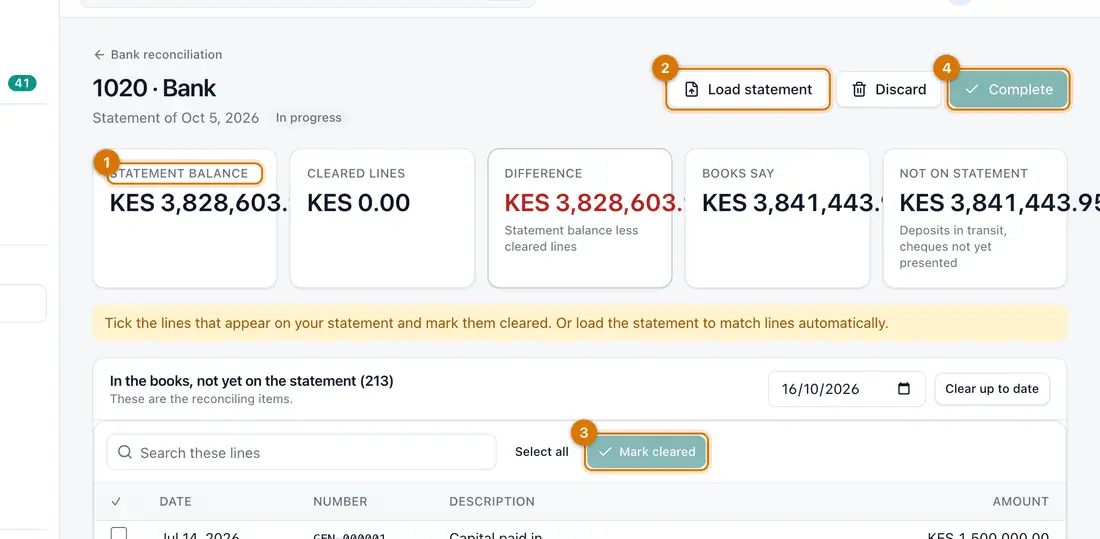
- Statement balance and difference
- Load statement
- Lines to tick and Mark cleared
- Complete
You should see: A page showing Statement balance, Cleared lines, Difference and Books say.
-
Click Load statement to match lines for you. Or tick the lines that are on your statement.
-
Click Mark cleared. To clear everything up to the statement date, use Clear up to date.
You should see: Cleared lines goes up and Difference goes down.
-
Check In the books, not yet on the statement. These are items still on the way, such as a deposit.
-
When Difference is zero, click Complete.
You should see: The reconciliation shows as completed. It is final.

If something goes wrong
The difference will not reach zero
A bank charge or interest may be on the statement but not in your records. Record it as an expense first, then clear it.
I started on the wrong account
Click Discard and start again with the right account.
A line is on the statement twice
Check it really is two payments. If not, ask your bank. Do not clear it twice.
Still stuck? See Fix common problems.