A till is one counter or device. You open it with the cash already in the drawer.
Before you start
- A product with a price and some stock.
Steps
-
Register the till once. Click Sell > Tills and devices, open the Devices tab and click Register device. Type a Name (for example
Counter 1) and a Code (D1). Choose the Branch and the Store the till takes stock from. Click Save.You should see: A box shows the device key. Click I have saved it.
-
Click Sell > Point of sale.
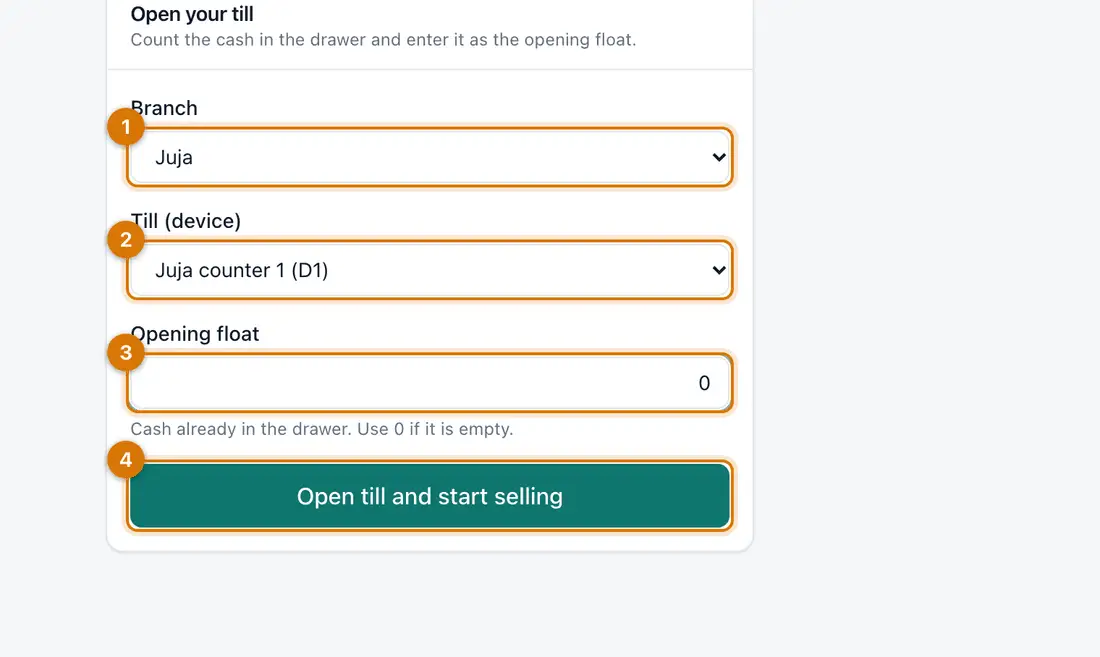
- Branch
- Till (device)
- Opening float
- Open till and start selling
You should see: A page titled Open your till.
-
Choose the Branch and the Till (device). Under Opening float type the cash in the drawer (type
0if empty). Click Open till and start selling.You should see: The till screen: your products on the left and an empty sale on the right.
If you left a till open on this device, you go straight back to it.
-
Add a product: tap it, or click the search box, type a name or code (or scan a barcode) and press Enter.
You should see: The product appears in the sale. Use One more and One less to change the quantity.
-
Click Pay, or press F8.
You should see: Take payment opens with the full amount on a Cash line.
-
If the customer hands over more, type that in Handed over. Click Complete sale.
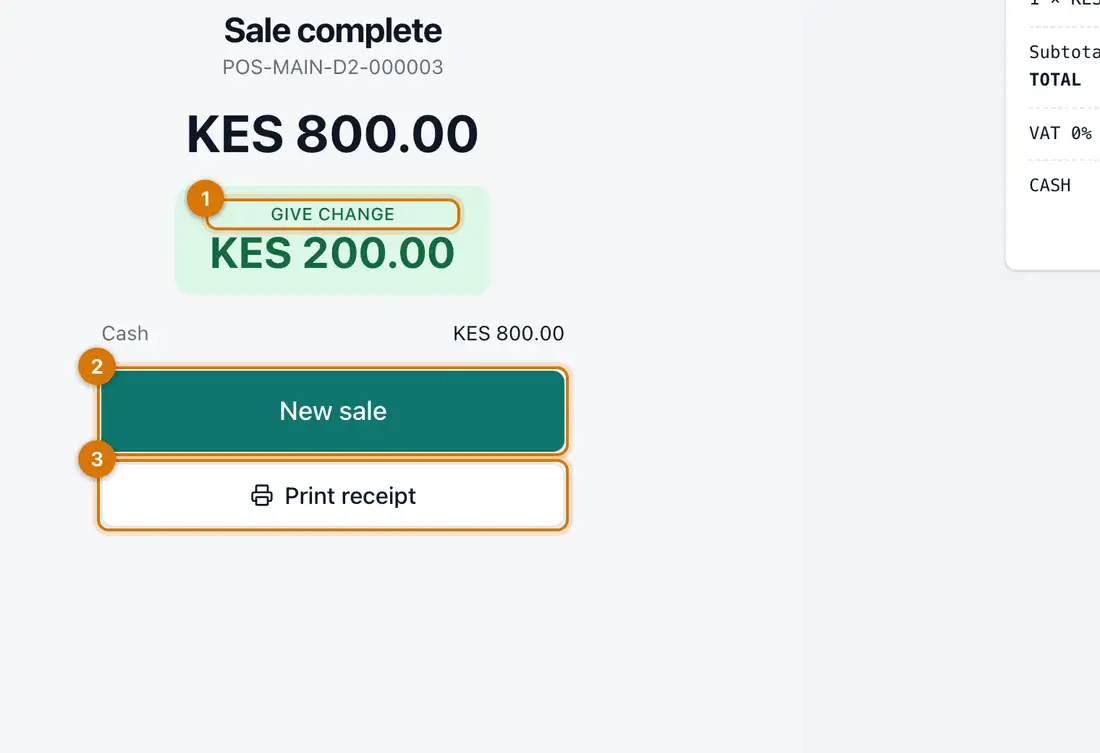
- Change to give
- New sale
- Print receipt
You should see: Sale complete with the receipt number and, for cash, Give change.
-
Click New sale for the next customer.


If something goes wrong
A product does not appear on the till
It has no current price, or is not Active. Open it under Stock > Products and check its Prices tab.
The Till (device) list is empty
No till is registered for that branch. Do step 1 and choose the right Branch.
The till takes stock from the wrong store
Click Sell > Tills and devices, open the Devices tab, click ••• on the till and choose Change store. Close the till first.
Still stuck? See Fix common problems.