Give each person their own sign-in and a role that shows only what they need.
Steps
-
Click Settings, then Users.
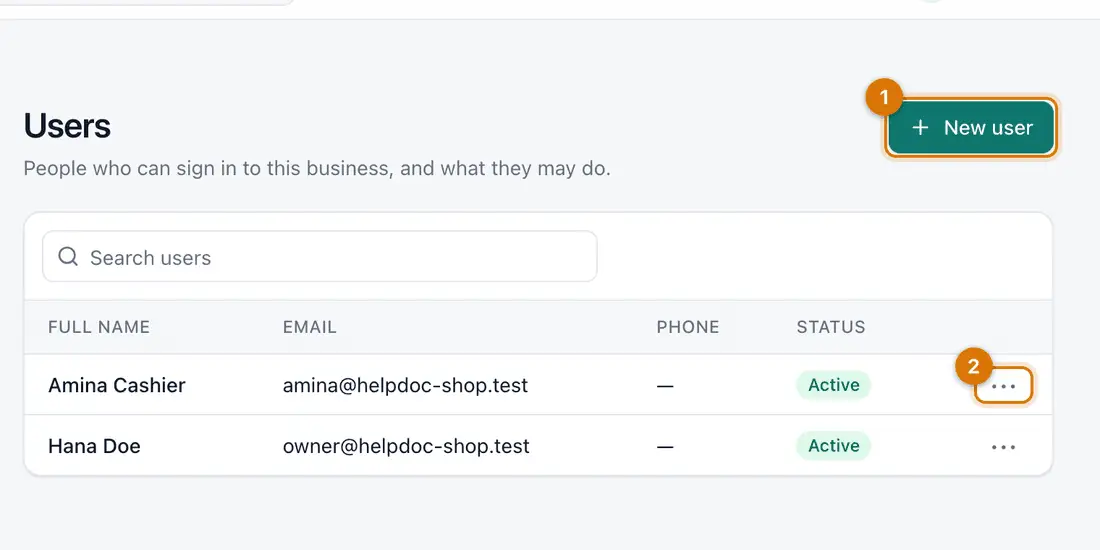
- New user
- The ••• menu on each person
You should see: A table of the people who can sign in.
-
Click New user. Type the Full name, Email, Phone and a first Password. Click Save.
Ziira sends no invitation. Tell the person the password. They can change it under My account.
-
In the person's row, click ••• and choose Roles and access.
-
Choose the Role, for example Cashier. In Applies to, choose One branch and pick the branch, or The whole business. Click Give role.
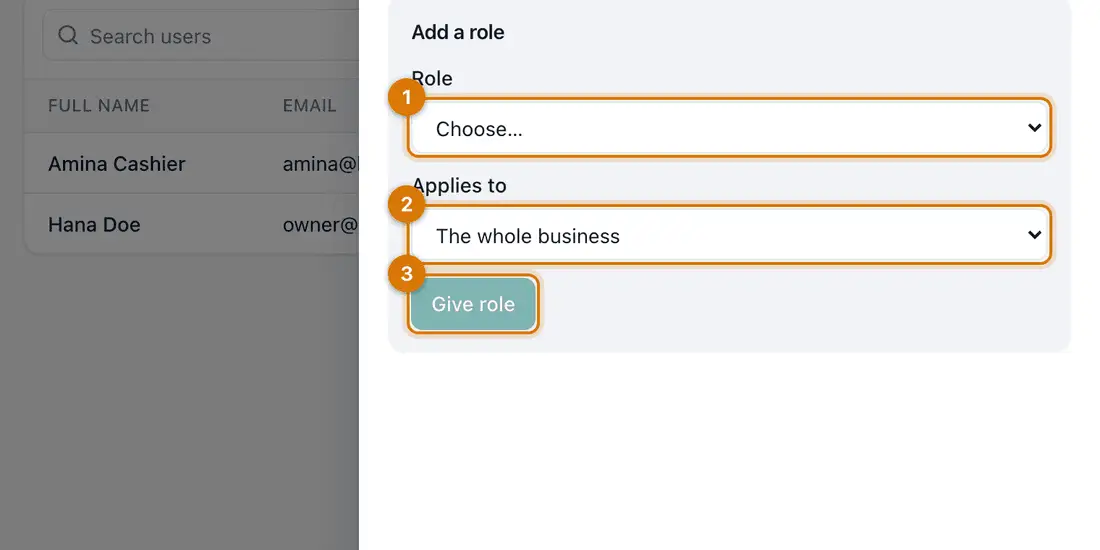
- Role
- Applies to
- Give role
You should see: The role is listed. A person can have more than one role.
-
Ask the person to sign in with their email or phone and the password you chose.
You should see: They see only the menu items their role allows.


If something goes wrong
The person cannot see a screen they need
Their role does not include it. Give them a second role, or click Settings > Roles and View a role to see what it allows.
A person left the business
Click Settings > Users, then ••• on their row, and choose Disable. Their past work stays on record.
Someone forgot their password
Click Forgot password? on the sign-in page, or choose Set password in the ••• menu of their row.
Still stuck? See Fix common problems.