Each kind of document has its own numbers, usually per branch. A number is never reused.
Steps
-
Click Settings > General, then open the Document numbers tab.
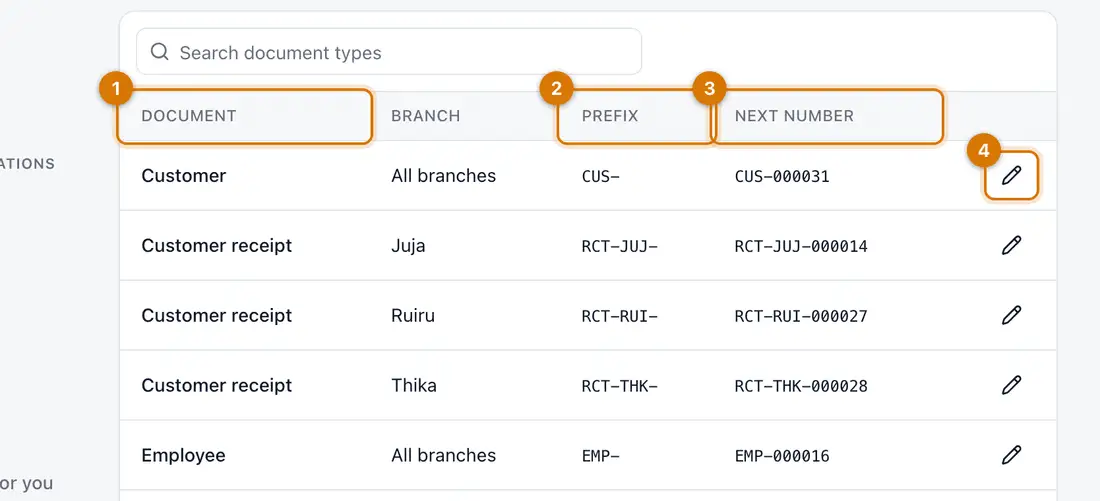
- Document and branch
- Prefix
- Next number
- Edit
You should see: A table with Document, Branch, Prefix and Next number.
-
On a row, click the pencil (Edit). Change the Prefix or the number of Digits. Preview shows the result. Click Save.
Next number can only go up.
-
Open the Reason codes tab. It lists the reasons staff pick for voids, refunds, discounts, price changes and stock adjustments. Click New reason to add one.

If something goes wrong
I want to restart numbering at 1
Numbers only move forward. Change the prefix instead, for example add the year.
Staff say the reason they need is not listed
Click New reason and add it in the right group.
Two branches have the same prefix
Give each branch its own prefix so you can see where a document came from.
Still stuck? See Fix common problems.