A company owns your books. A branch is one shop or depot.
Steps
-
Click Settings, then Organisation.
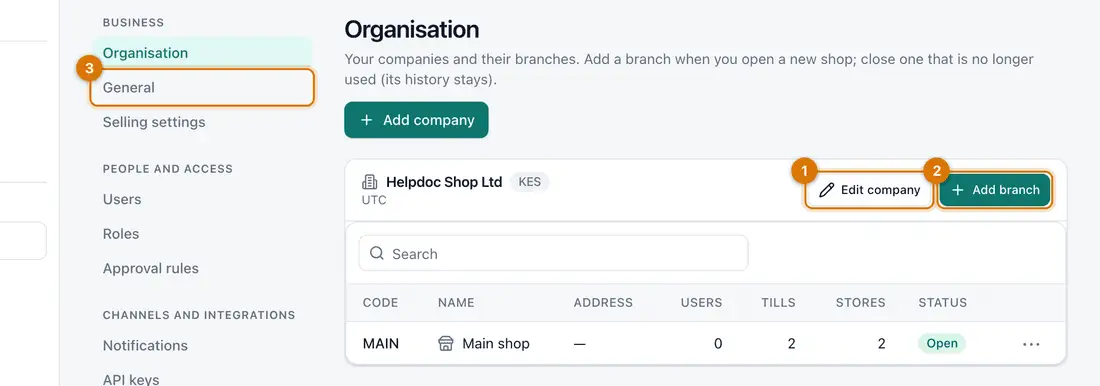
- Edit company
- Add branch
- The settings list on the left
You should see: Your company, and a table of its branches.
-
Click Edit company. Check the Company name, Currency, Country, Tax number and Time zone. Switch on Registered for sales tax if you charge it. Click Save.
You cannot change the currency after the first sale.
-
Click Add branch. Type a short Code (for example
THK) and a Name. Click Save.You should see: The branch appears in the table. Repeat for each branch.
-
Click Settings, then Selling settings. Type a Receipt footer, such as a thank-you line, and click Save.
You should see: The footer prints at the bottom of every receipt.

If something goes wrong
I cannot see Settings in the menu
Only people allowed to manage the organisation see it. Ask the owner.
I gave a branch the wrong code
Edit the branch from the table. Document numbers already issued keep the old code.
Still stuck? See Fix common problems.