Before you start
- Employees with approved basic pay.
- A second person who can approve. You cannot approve your own run.
Steps
-
Click People > Payroll setup. Check Statutory rules and Pay components. Another person must verify each rule.
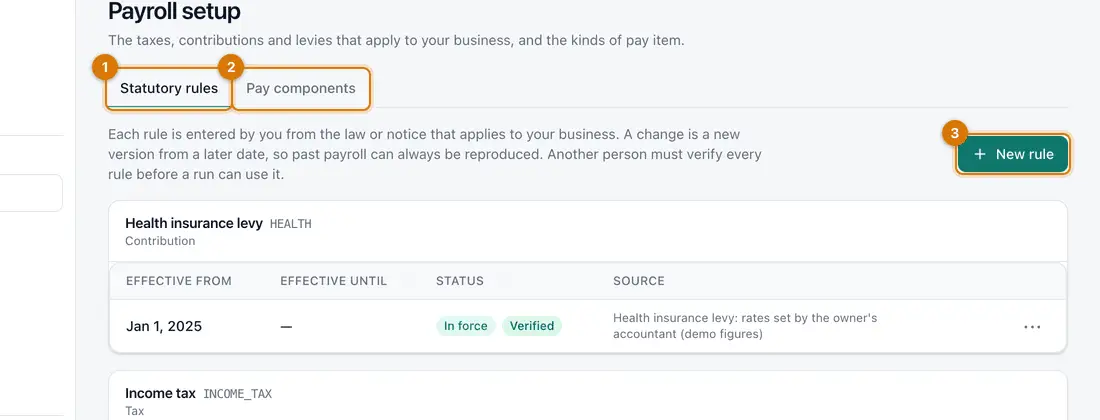
- Statutory rules
- Pay components
- New rule
-
Click People > Payroll, then New payroll run. Type Period starts, Period ends and Pay date. Click Create run.
-
Open the run and click Calculate.
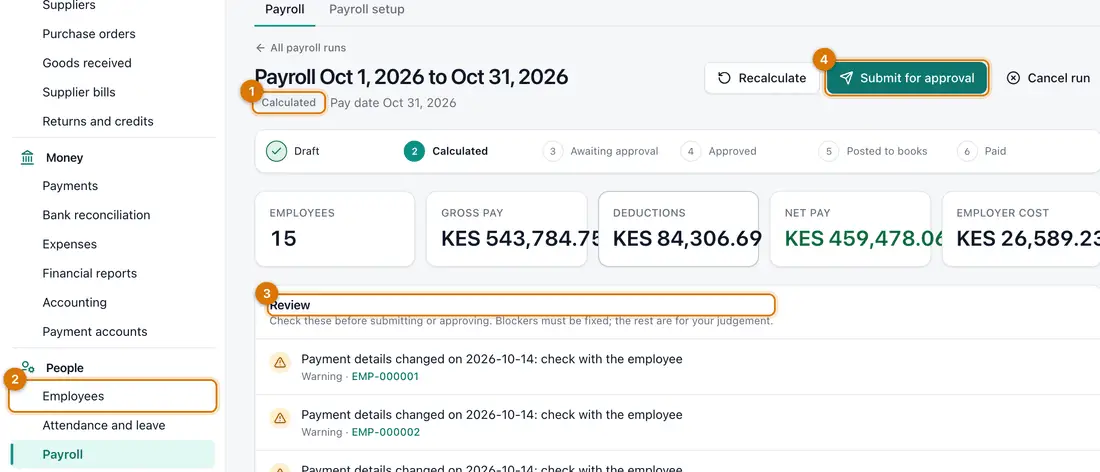
- Step bar
- Totals
- Review warnings
- Submit for approval
You should see: The status is Calculated. You see Employees, Gross pay, Deductions, Net pay and Employer cost.
-
Read the Review section. Fix every Blocker. Check each warning with the employee or manager. Click Recalculate if you changed anything.
-
Click Submit for approval.
You should see: The status is Awaiting approval.
-
A different person opens the run and clicks Approve. They can click Send back with a reason instead.
You should see: The run is Approved and posted to the books.
-
When the money has been paid, click Record payment.
You should see: The run is Paid. Payslips are under each employee.


If something goes wrong
Net pay looks far too high or too low
Read the warning beside that employee. Check their Pay tab, their attendance and your rules.
I cannot approve my own run
This is on purpose. Ask another person with approval permission.
I need to cancel a run
Click Cancel run. This works only before it is approved.
Still stuck? See Fix common problems.