Before you start
- For two-step verification: an authenticator app on your phone, such as Google Authenticator or Authy.
Steps
-
To see what a role allows, click Settings > Roles, then View on a role.
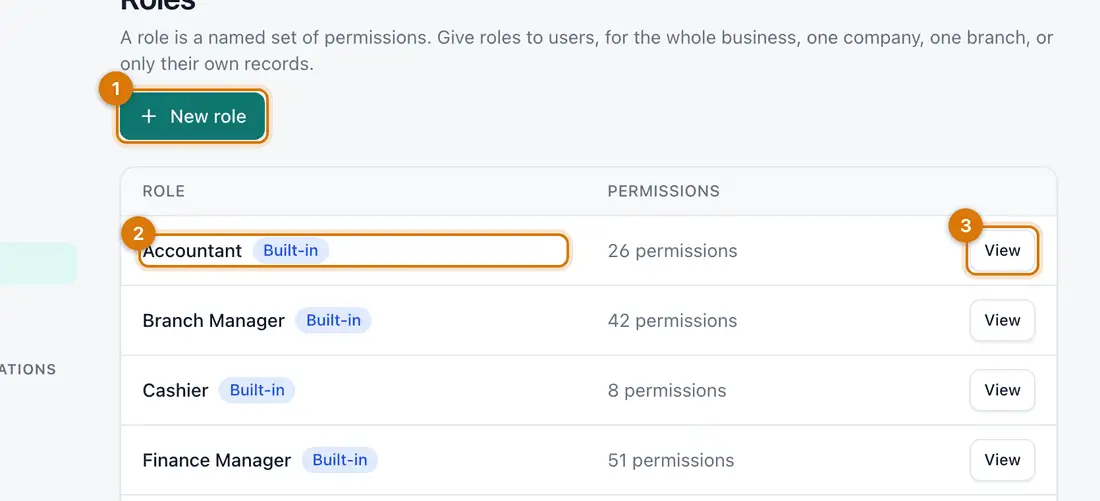
- New role
- Built-in roles
- View
You should see: Its permissions, in groups.
-
To make your own role, click New role, name it, tick the permissions and click Save.
-
To give a role to a person, see Add your team.
-
To require a phone code, click Settings > General and open the Security tab. Under Two-step verification required for, choose Nobody, People with powerful roles (admins, finance, payroll) or Everyone. Click Save.
-
To protect your own account, click your name at the top right, choose My account, find Two-step verification and click Set up.
-
Scan the picture with your authenticator app, or type the key shown. Type the 6-digit code and click Turn on.
-
Save your backup codes, then click I have saved my backup codes.
You should see: From now on, signing in asks for your password and then a 6-digit code.
Each backup code works once. They are shown only now.
-
On My account you can also click Change password and see Where you are signed in.

If something goes wrong
I lost my phone
Click Use a backup code instead on the code screen. With no backup code, an administrator can click Reset two-step verification in your row under Settings > Users.
Sign-in is paused after wrong passwords
Wait a few minutes, then try again or click Forgot password?.
A person can do too much
Give them a narrower role under Settings > Users, limited to one branch.
Still stuck? See Fix common problems.