Ziira checks every row first. A row with a problem never blocks the good ones.
Before you start
- A CSV file with the column names in the first row. In Excel, use Save as, then CSV.
- No more than 5 MB and 5,000 rows.
Steps
-
Click Settings > Import data, then New import.
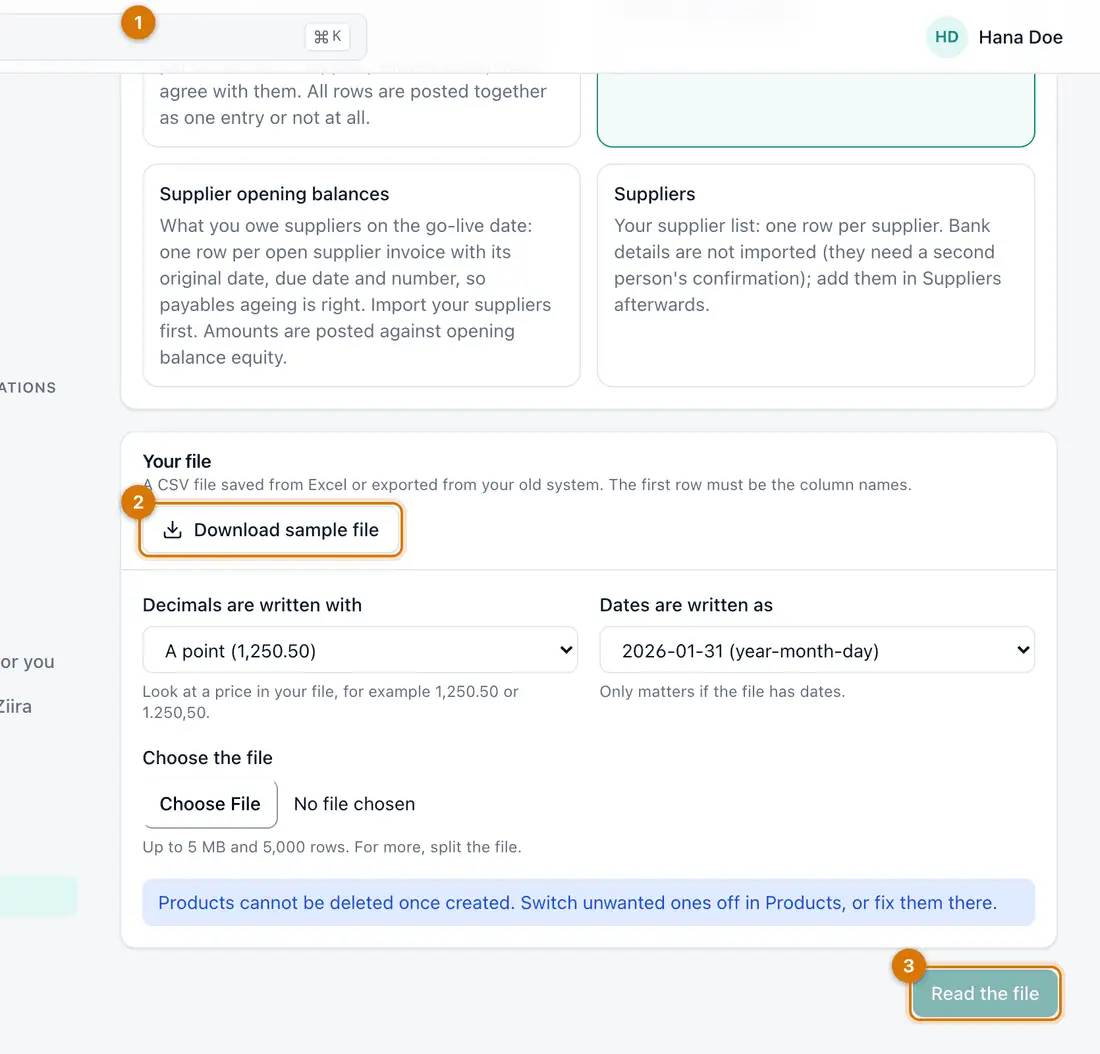
- What are you importing
- Download sample file
- Read the file
You should see: A page titled New import with What are you importing?.
-
Choose what you are importing, such as Products and prices or Customers. Import products before opening stock.
-
Click Download sample file and arrange your columns to match it.
-
Set Decimals are written with and Dates are written as. Look at a price in your file to decide.
-
Click Choose the file, pick it, then click Read the file.
You should see: A page titled Match your columns. Ziira guesses where it can.
-
Check each field has the right column. Fields with a star need one. Click Check the file.
You should see: Every row is checked and nothing is saved yet. You see how many are ready, how many have problems, and how many are already in Ziira.
-
Click the button that starts with Import and confirm. Imported records cannot be deleted, so check first.
You should see: A report shows the rows imported, skipped and rejected, with totals. Click Download rows with problems to fix and import only those.

If something goes wrong
My Excel file is refused
Save it as CSV from Excel and upload that file.
Products fail with unit or tax code not found
Check the codes under Stock > Products > Catalogue setup, fix them in your file and import again.
Prices come out wrong
You chose the wrong decimal style. Change Decimals are written with to match your file.
Still stuck? See Fix common problems.