A credit sale gives goods now and an invoice the customer pays later.
Before you start
- The customer added under Customers > Customers.
Steps
-
Click Customers > Customers, open the customer, then the Credit tab. Click Change credit.
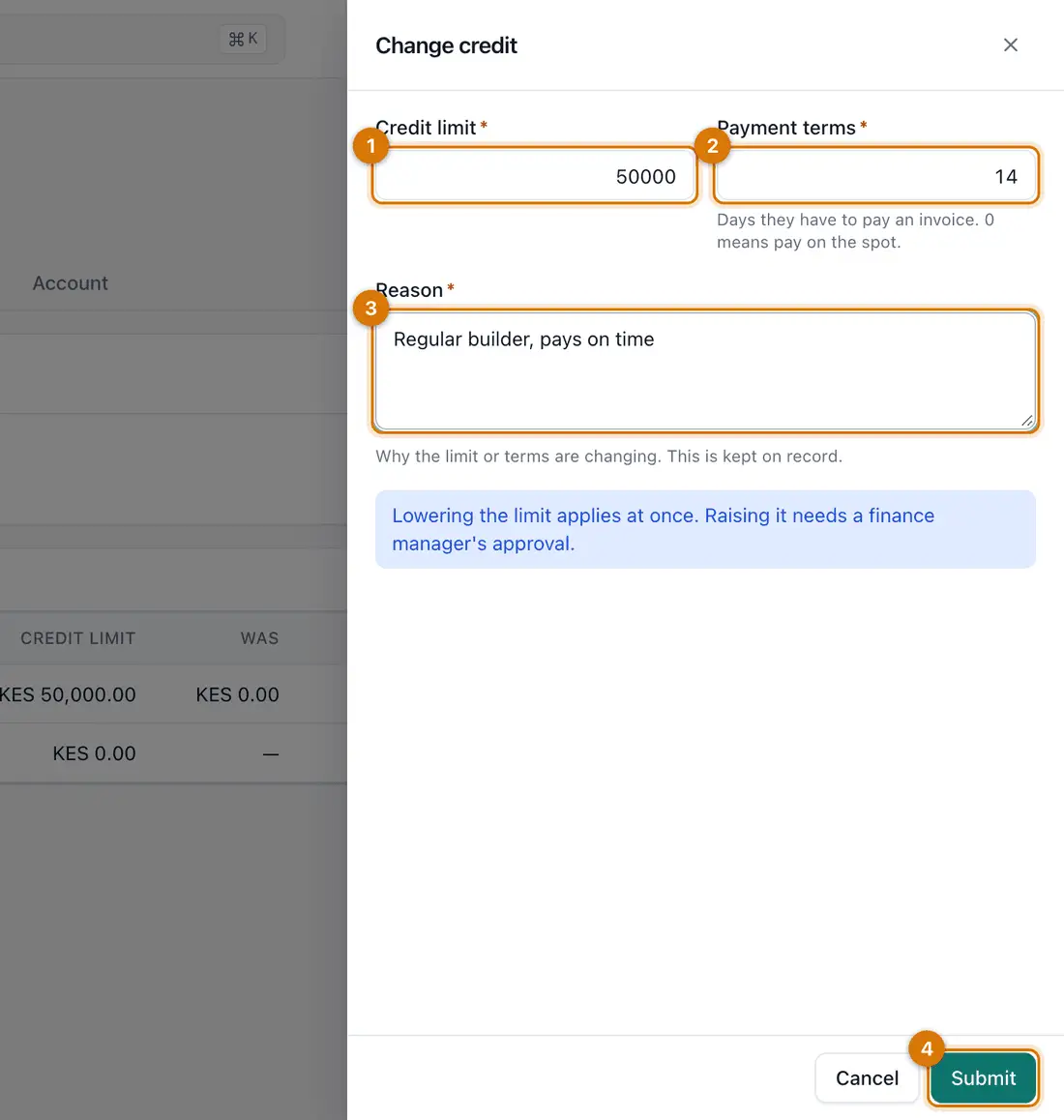
- Credit limit
- Payment terms (days)
- Reason
- Submit
You should see: A drawer with Credit limit, Payment terms and Reason.
-
Type the Credit limit, the Payment terms in days (0 means pay on the spot) and a Reason. Click Submit.
You should see: Credit updated.
Raising a limit may need a manager's approval, if your business has that rule.
-
On the till, add the goods. Click Walk-in customer (tap to attach one) and choose the customer.
-
Click Pay, click Remove payment on the cash line, then click On account.
-
Click Complete sale.
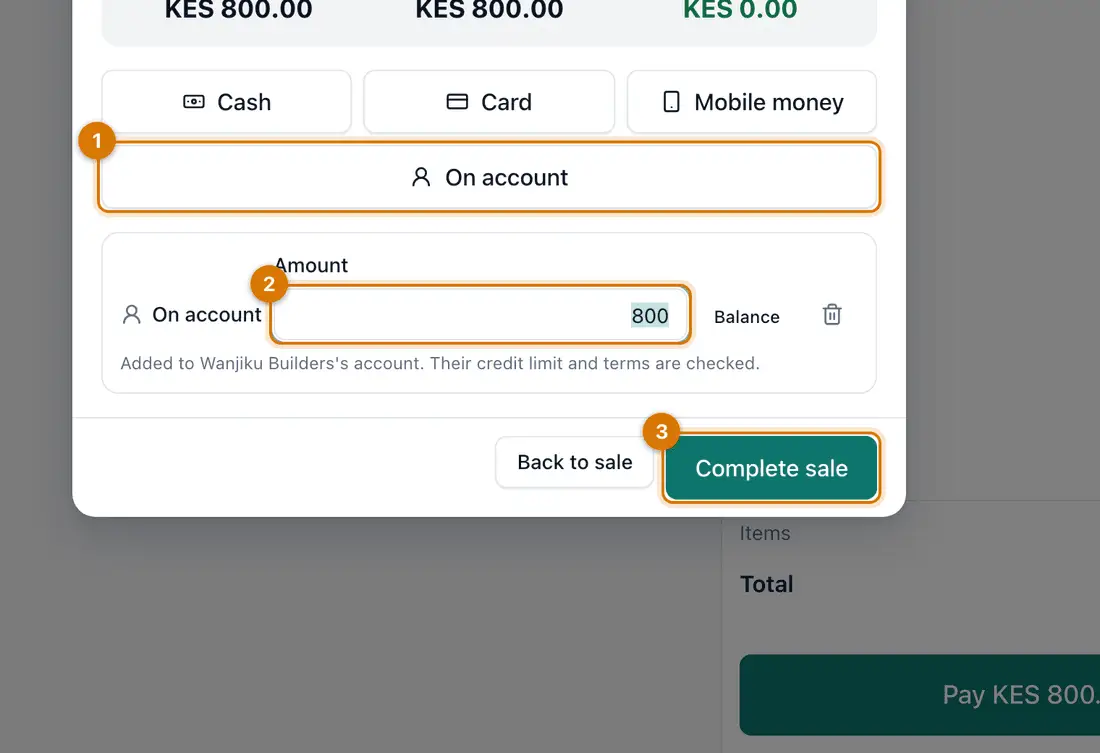
- On account
- Amount owed on account
- Complete sale
You should see: Sale complete, with the customer's account charged.
-
When the customer pays, open Customers > Customers, click the customer and click Receive payment.
-
Type the Amount, check the Date received, choose how they paid in Paid by, add a Reference and click Record payment.
You should see: The payment settles the oldest invoices first. Sell > Invoices shows them as Paid or Part paid.
If they paid more than they owe, tick Keep any extra as credit on the customer's account.


If something goes wrong
On account is not offered
No customer is attached. Click Walk-in customer (tap to attach one) and choose one.
The sale is refused for going over the limit
Reduce the sale, take part of it in cash, or raise the limit (step 2).
On account does not work offline
The limit is checked live, so you need a connection. Take another payment method.
Still stuck? See Fix common problems.