Use an adjustment for one known problem. Use a count to check a whole location.
Steps
-
To adjust, click Stock > Stock actions, then New adjustment.
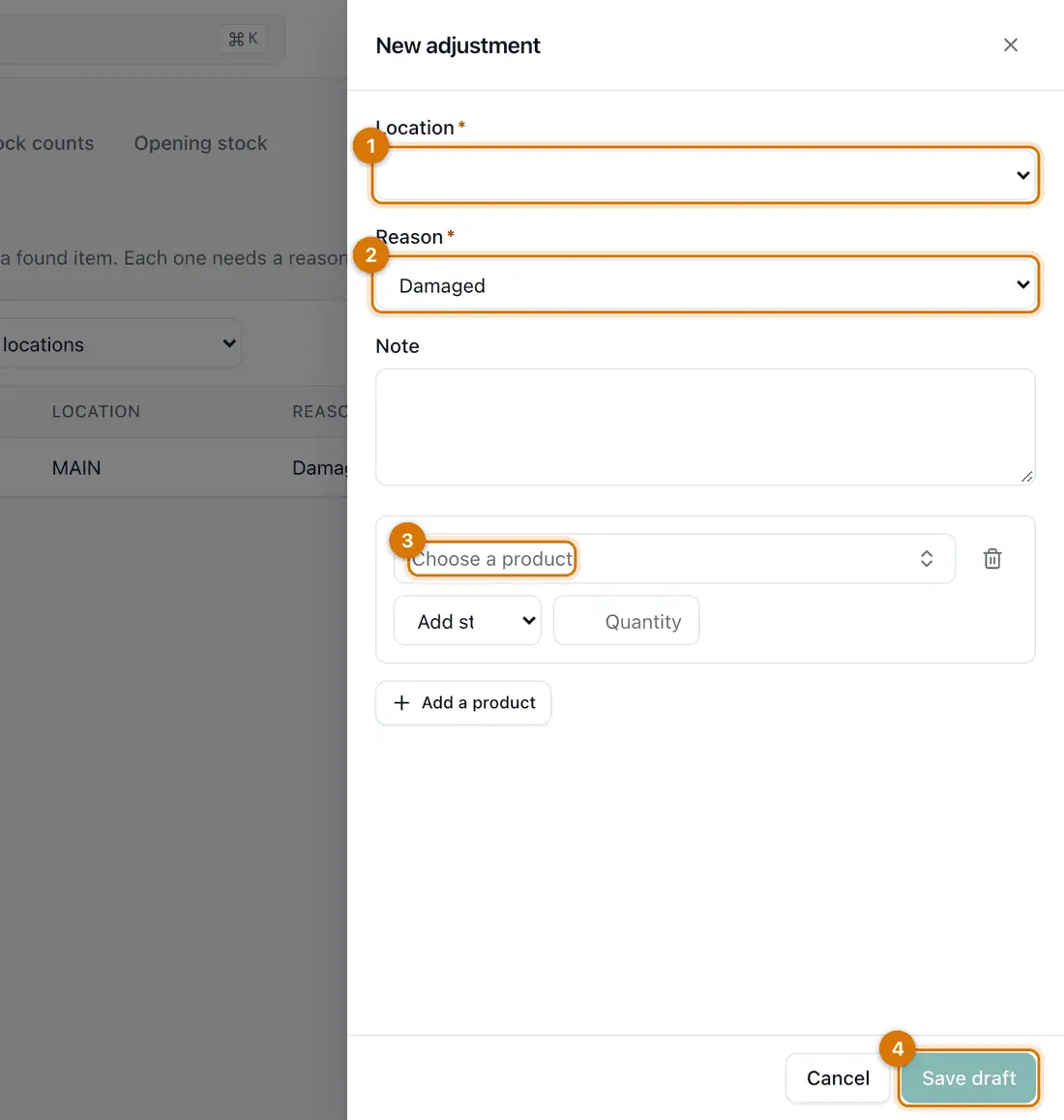
- Location
- Reason
- Product and quantity
- Save draft
-
Choose the Location and the Reason. Click Choose a product, pick Add stock or Remove stock, and type the Quantity. Click Save draft.
You should see: The adjustment opens as a Draft. Stock has not changed yet.
-
Click Submit and confirm.
You should see: It becomes Posted and stock changes. A large one may wait for approval first.
-
To count, open the Stock counts tab and click New count. Choose the Location and click Start count. Tick Count only some products to count part of the shelf.
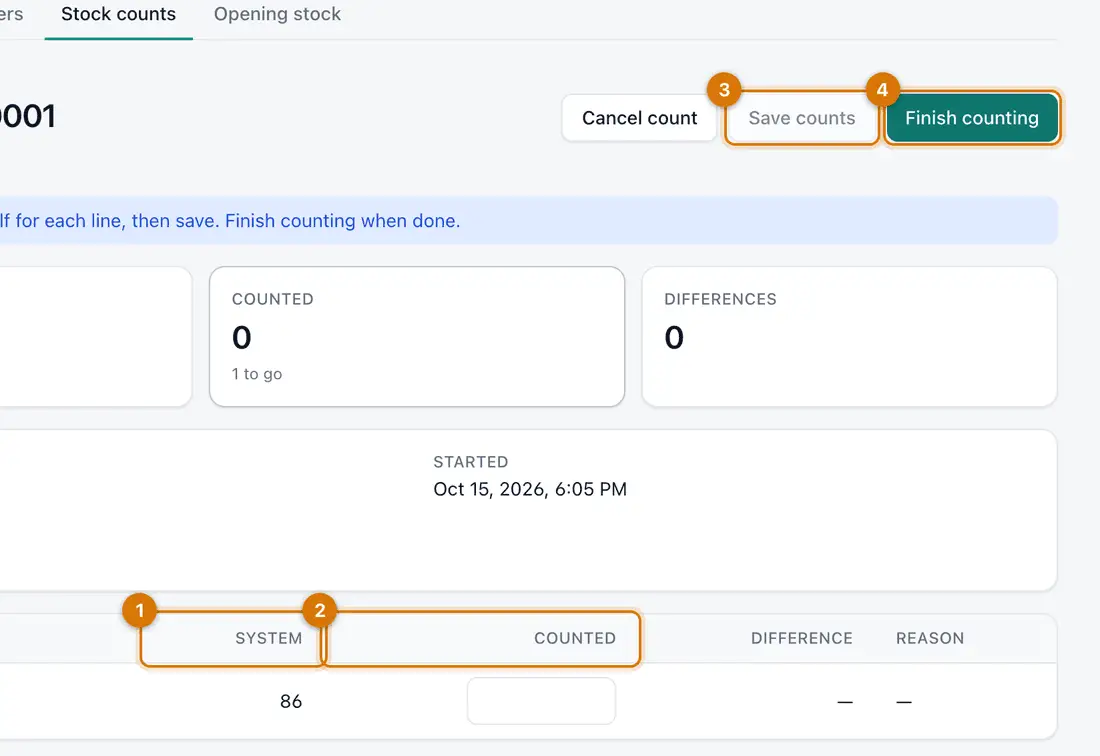
- System quantity
- Counted
- Save counts
- Finish counting
You should see: A count sheet lists each product with the quantity the system expects.
-
Type what you found in Counted for each line. Click Save counts. You can come back later.
-
Click Finish counting. Choose a reason for each difference, then click Submit count.
You should see: The differences are posted to stock. Large ones go for approval first.


If something goes wrong
I cannot submit
Your role may not allow posting adjustments. Ask a manager.
I finished a count with a wrong number
A posted count cannot be changed. Make an adjustment with the reason Correction of a data entry error.
Sales happened during the count
Count when the shop is closed or quiet. Sales made meanwhile cause differences.
Still stuck? See Fix common problems.