Before you start
- For reminders: an email or SMS channel set up under Settings > Notifications.
Steps
-
Click Customers > Who owes us.
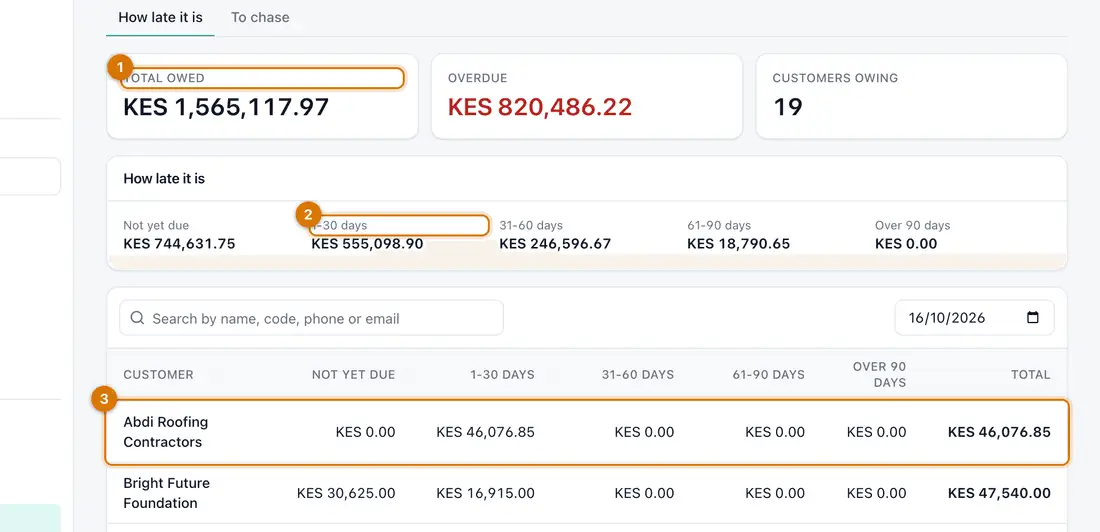
- Totals
- Age bands: not yet due to over 90 days
- Customer rows
You should see: Total owed, Overdue and Customers owing at the top, then a table of balances by how late they are.
-
Read the columns: Not yet due, 1-30 days, 31-60 days, 61-90 days and Over 90 days. Use As of to look at an earlier date.
-
Click the To chase tab. Set Overdue by at least (days).
You should see: The customers who are at least that late.
-
Choose the Channel (SMS or Email) and click Send reminders.
You should see: The reminders are queued, not sent while you wait. Customers marked Do not contact are skipped.
-
To see one customer's invoices and payments, click their name and open the Account tab.
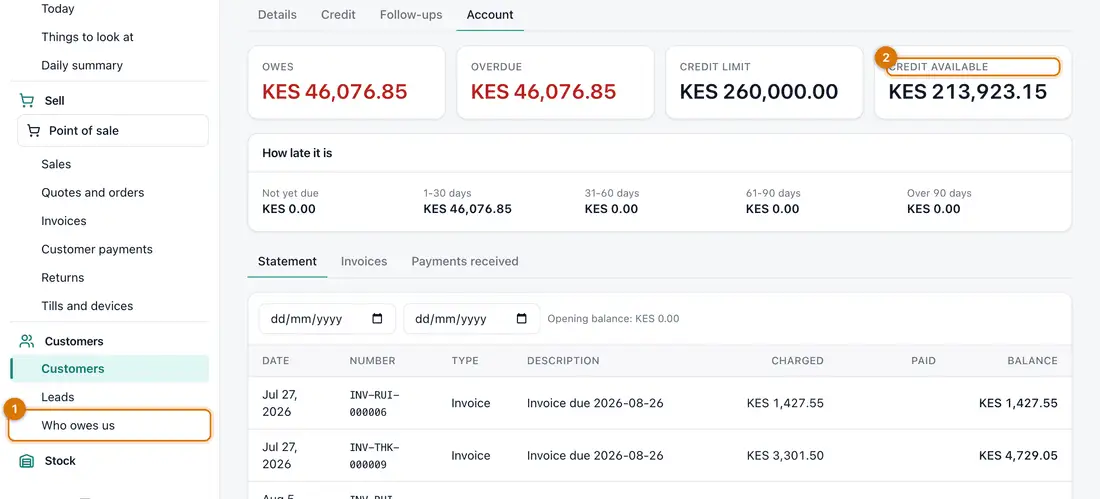
- Owes and overdue
- Credit available
-
To send reminders every day, open Settings > General. Under Customer reminders, set Overdue reminders, Remind after (days overdue) and Do not remind again within (days). Click Save.


If something goes wrong
Reminders do not arrive
Your channel may not be set up, or the customer has no phone or email. Check Settings > Notifications and its Sent messages tab.
A customer says they already paid
Open them and click Receive payment. It pays their oldest invoices first.
A customer is skipped
They are marked Do not contact. Call them yourself.
Still stuck? See Fix common problems.