The usual path is quotation, then order, then delivery with an invoice. For an invoice alone, use New invoice under Sell > Invoices.
Steps
-
Click Sell > Quotes and orders, then New quotation.
You should see: A form with Details and Items.
-
Click Choose a customer and pick one. Check the Branch, Valid until and Payment terms (days).
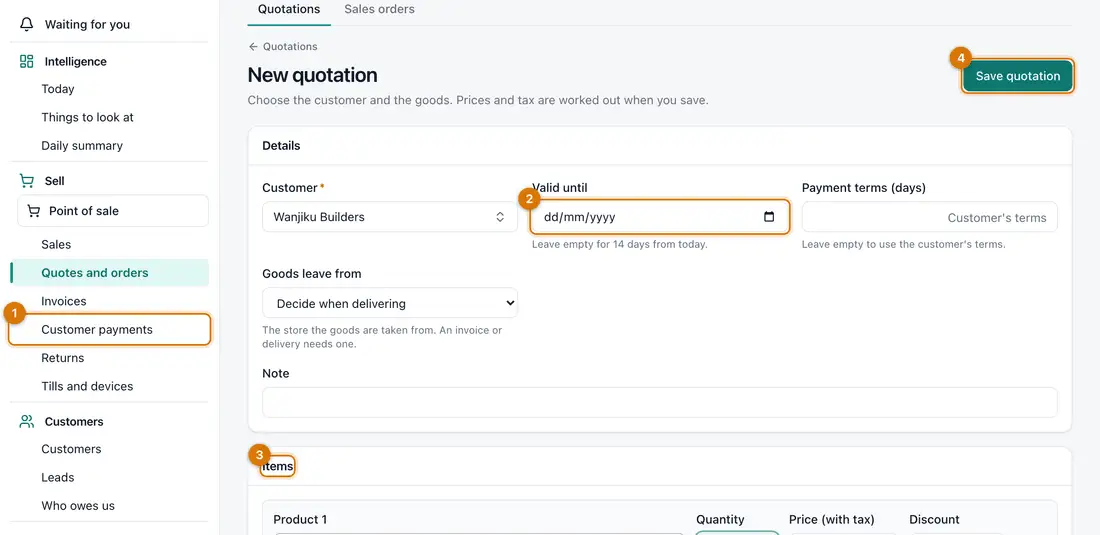
- Customer
- Valid until and terms
- Items
- Save quotation
-
Under Items, click Choose a product and type the Quantity. Change the Price (with tax) or add a Discount if you need to. Click Add a line for more.
-
Click Save quotation.
You should see: The quotation opens as a Draft.
-
Click Mark as sent once the customer has it. When they agree, click Accept and confirm.
You should see: A sales order is made from the quotation.
-
On the order, click Confirm order.
You should see: The order shows Confirmed.
-
When the goods leave, click Deliver. Check Deliver now (lower it for a part delivery), choose Goods leave from, and click Deliver and invoice.
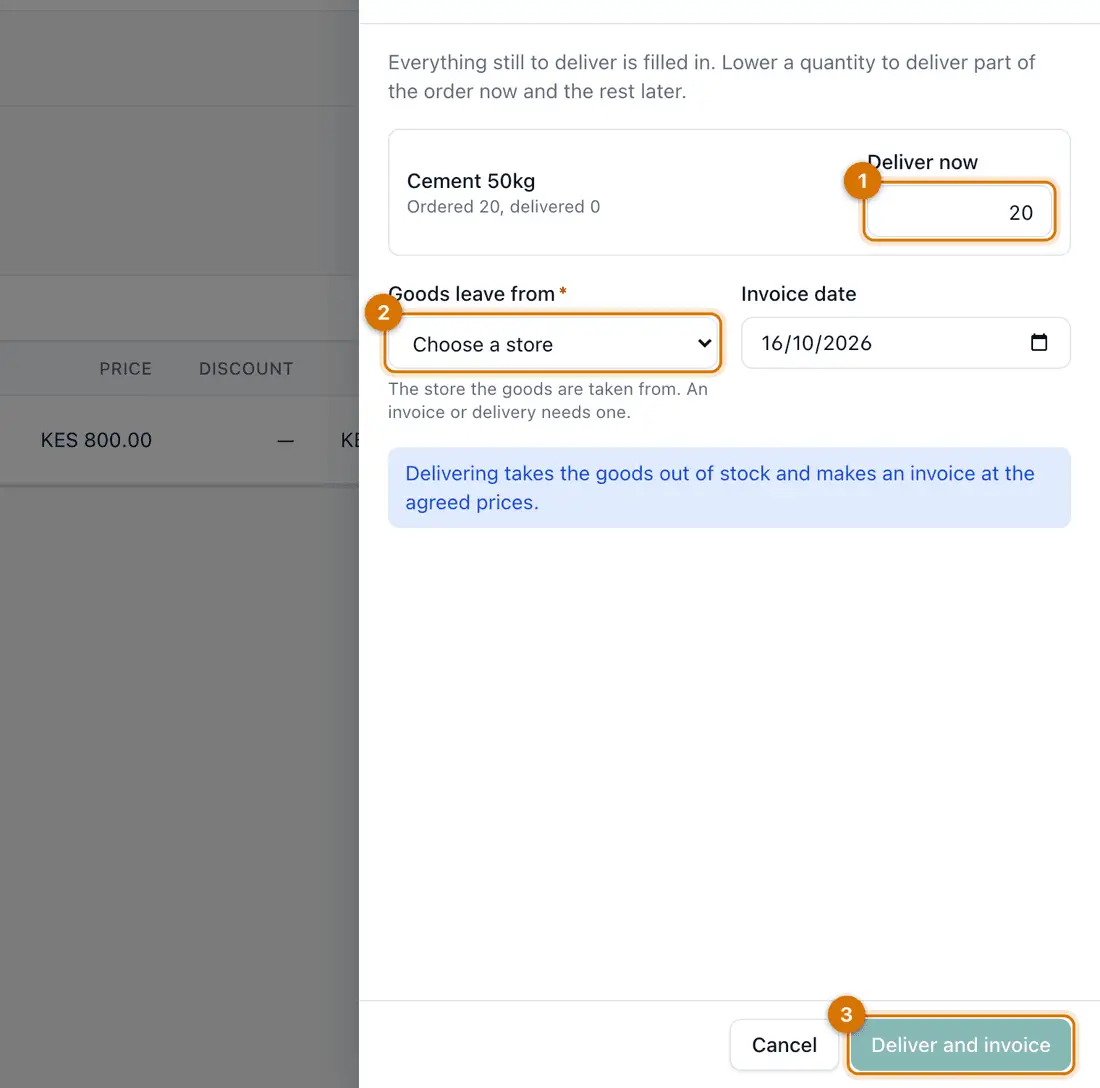
- Deliver now
- Goods leave from
- Deliver and invoice
You should see: Stock goes down and an invoice is made. Find it under Sell > Invoices.


If something goes wrong
Deliver and invoice is greyed out
Choose Goods leave from. Delivery needs a store to take the stock from.
I need to change a quotation
Click Change while it is still a draft. After Mark as sent it is locked: cancel it and make a new one.
The customer went over their credit limit
Take a part payment, or raise their limit: see Sell on credit.
Still stuck? See Fix common problems.