Add a product, then give it a price so it shows up at the till. Prices include tax.
Steps
-
Click Stock > Products, then New product. Type the Name and the SKU (your own code, or click Suggest SKU). Choose the Type (Stock for goods you count), the Unit and the Tax code.
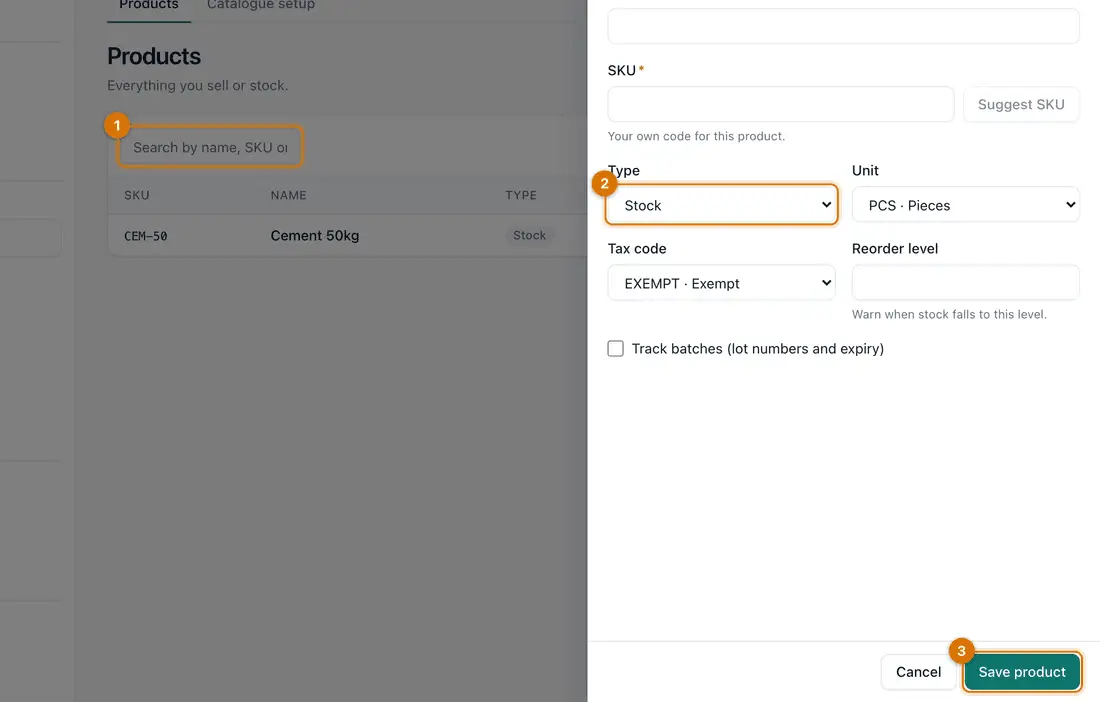
- Name and SKU
- Type, unit and tax code
- Save product
Units EACH, KG, LITRE and BOX are ready. To get a low-stock warning, type a Reorder level.
-
Click Save product.
You should see: The product appears in the list as Active.
-
Only the first time: open the Catalogue setup tab and then Price lists. Click New price list, type a Name (for example
Retail), tick Use as the default price list and click Save. -
Click Products, open your product, then open the Prices tab. Under Set a price type the Price and click Save price.
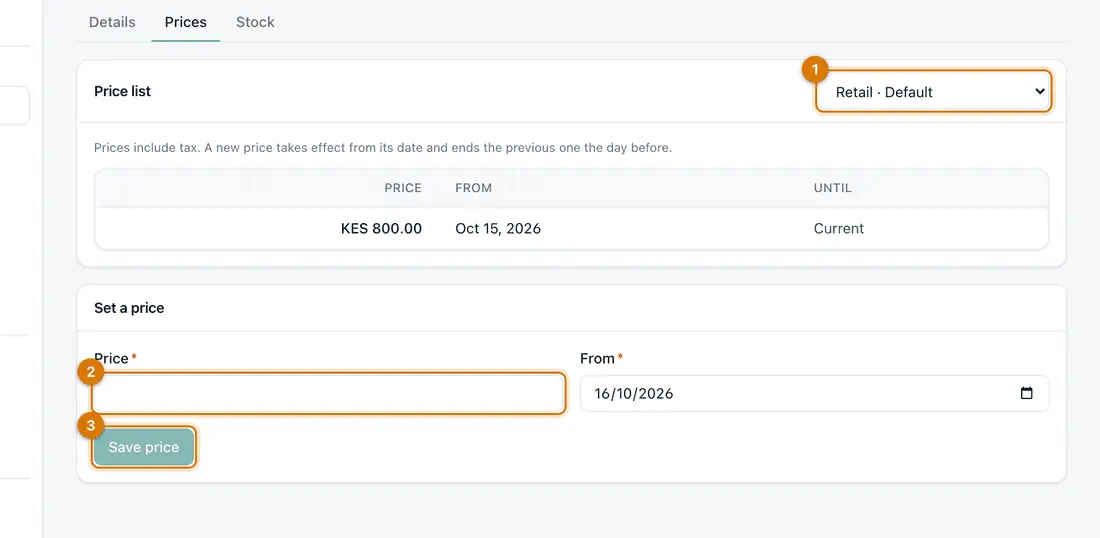
- Price list
- Price and From date
- Save price
You should see: The price shows as Current.


If something goes wrong
The Tax code list is empty
Open Catalogue setup, then Tax codes. Click New tax code, fill in the Code, Rate (%) and Name, and click Save.
The product is not at the till
It needs a current price on the default price list and must be Active.
I set the wrong price
Set a new price with today's date. It replaces the old one from that day.
Still stuck? See Fix common problems.