Before you start
- The goods were received on a receipt in Ziira.
Steps
-
Click Buy > Goods received and open the receipt the goods came on.
-
Click Return goods. For each item, type the Quantity to return. Choose the Reason for return and add a Note.
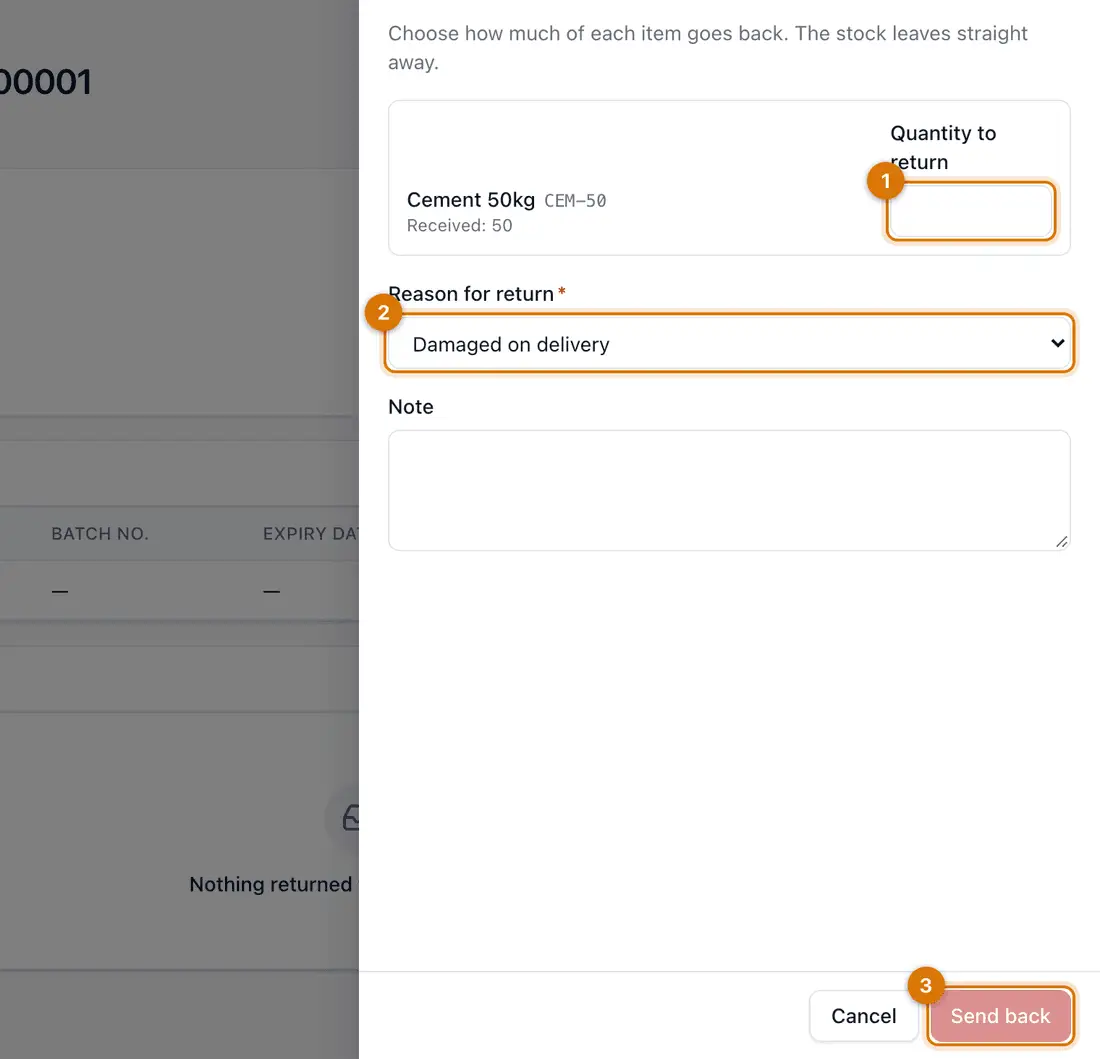
- Quantity to return
- Reason
- Send back
-
Click Send back.
You should see: Stock leaves straight away. The return is listed under Buy > Returns and credits, on the Returns to suppliers tab.
-
When the supplier sends a credit note, open the bill. Click More, then Record credit note. Enter the credit and save.
You should see: The bill shows the amount Credited and Still owed goes down.
-
If the supplier pays you back instead, use the Supplier refunds tab under Returns and credits.

If something goes wrong
I cannot return more than I received
Each item shows how many you received. A return cannot be more than that.
The bill is already paid
Record the credit note anyway. The supplier then owes you a refund. Record it on the Supplier refunds tab when it arrives.
The supplier has not sent a credit note
Keep the return on file and ask them for it. Check the Supplier credit notes tab.
Still stuck? See Fix common problems.