Before you start
- For mobile money: a mobile money account, added under Payment accounts in the Money menu.
Steps
-
On the till, click Pay (or press F8).
You should see: Take payment opens with a Cash line holding the full amount.
-
For cash, type what the customer handed over in Handed over.
You should see: Change shows what to give back.
-
For card, click Remove payment (the bin) on the cash line, then click Card. Check the Amount and type the Card slip number (optional).
-
For mobile money, click Mobile money. Check the Amount and type the Mobile money code from the customer's confirmation message.
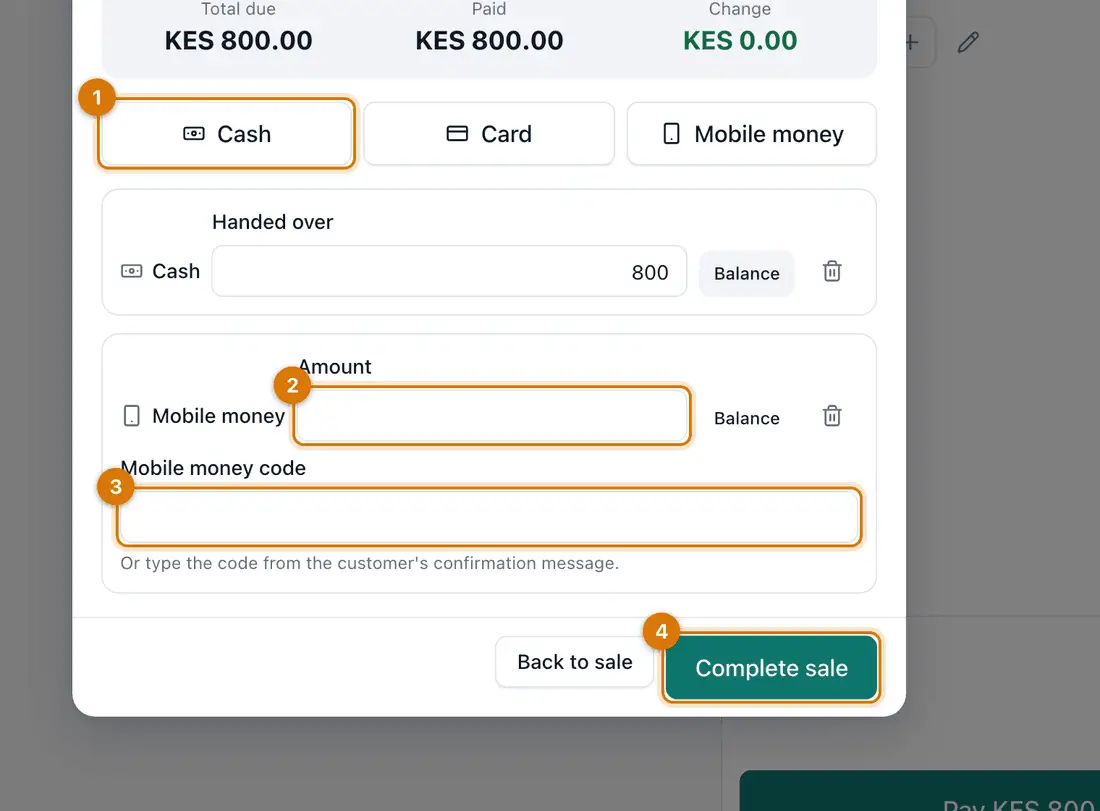
- Payment methods
- Amount for each
- Mobile money code
- Complete sale
-
To split a sale, add several lines, for example Cash 300 and Mobile money 500. Click Balance on a line to fill in what is still unpaid.
You should see: Paid reaches the total.
-
Click Complete sale.
You should see: The Sale complete screen.

If something goes wrong
Complete sale does nothing
Paid is lower than Total due. Click Balance on a line, or add another payment.
The customer paid by mobile money but I have no code
Ask them to show the confirmation message and read the code from it.
The customer wants to pay later
Attach the customer and choose On account: see Sell on credit.
Still stuck? See Fix common problems.