Ziira only reads what you connect. It never changes your other system.
Before you start
- For a file: a PDF, Excel (.xlsx), CSV or photo (PNG or JPG) of up to 10 MB. Save old .xls files as .xlsx first.
Steps
-
Click Connected systems in the left menu, then Add connection.
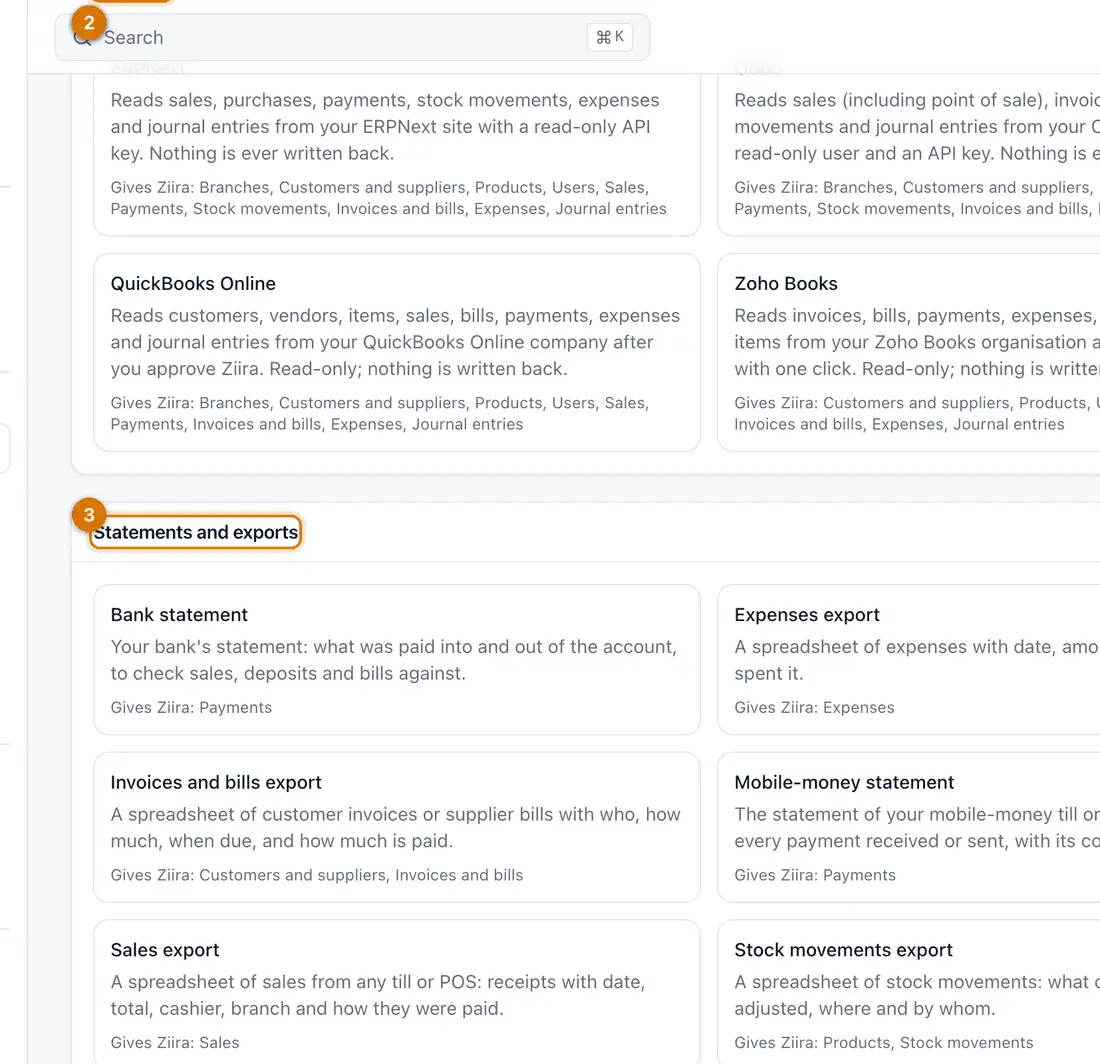
- Drop or choose a file
- Your system
- Statements and exports
You should see: The Add a connection page.
-
For a file: drop it on the box, or click Choose a file.
-
If a PDF is protected, type its Password. It is used once and never saved.
-
Look at the preview. Click Looks right, or Something is wrong to pick the right columns.
-
For a system: click ERPNext, Odoo, QuickBooks Online or Zoho Books and follow the steps.
-
Open the connection from Connected systems.
You should see: It shows Last successful read and its status.

If something goes wrong
That kind of file cannot be read
Use a PDF, Excel (.xlsx), CSV or photo (PNG or JPG).
It says the file is the wrong kind
Ziira names the kind it looks like. Use that one.
A photo was refused
Reading photos needs a server setting. Upload a PDF, Excel or CSV instead.
Still stuck? See Fix common problems.