Before you start
- An approved purchase order.
Steps
-
Click Buy > Purchase orders and click the order.
-
Click Receive goods.
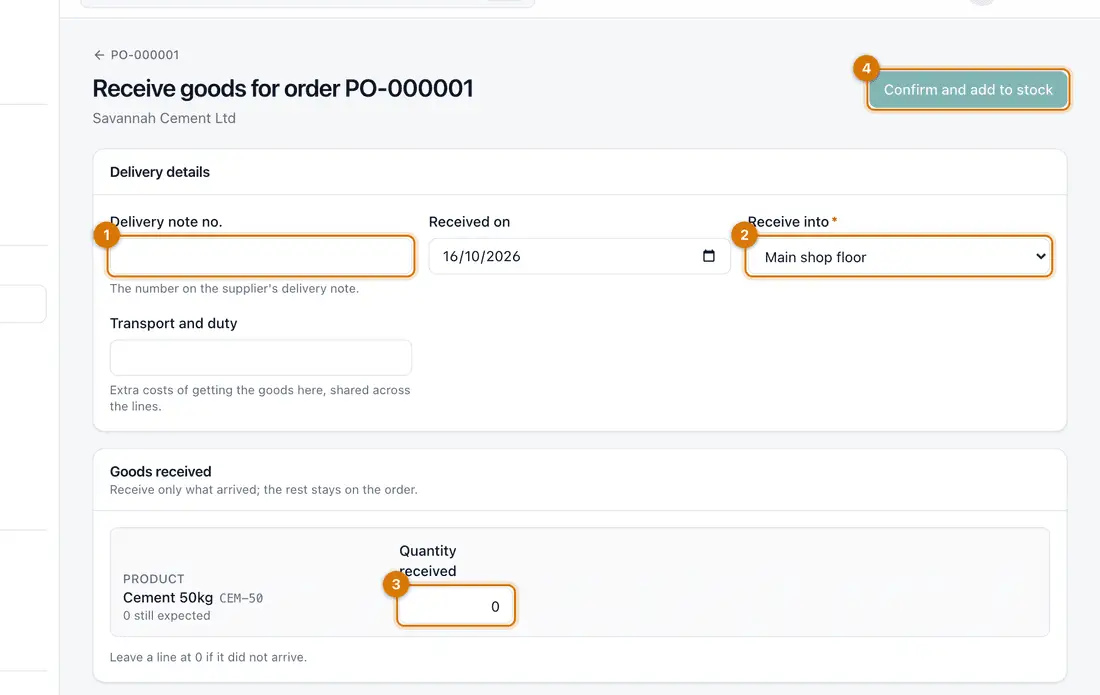
- Delivery note no.
- Receive into
- Quantity received
- Confirm and add to stock
You should see: The Receive goods for order page lists each product and how many are still expected.
-
Type the Delivery note no. and check Received on.
-
Choose Receive into: the location that will hold the goods.
-
Check the Quantity received for each product. Leave a line at 0 if it did not arrive. Add Transport and duty if there was a charge.
-
Click Confirm and add to stock.
You should see: A receipt such as GRN-MAIN-000001 appears as Posted. Stock goes up and the order shows what is still to come.

If something goes wrong
Only part of the order came
Receive what arrived. The rest stays on the order for the next delivery.
Goods arrived damaged
Receive them, then click Return goods on the receipt: Send goods back to a supplier.
I do not see Receive goods on the order
The order is still a draft or waiting for approval. Submit and approve it first.
Still stuck? See Fix common problems.