Before you start
- The statement as a CSV file.
- A payment account for it under Payment accounts.
Steps
-
Click Money > Payments, then the Reconciliation tab.
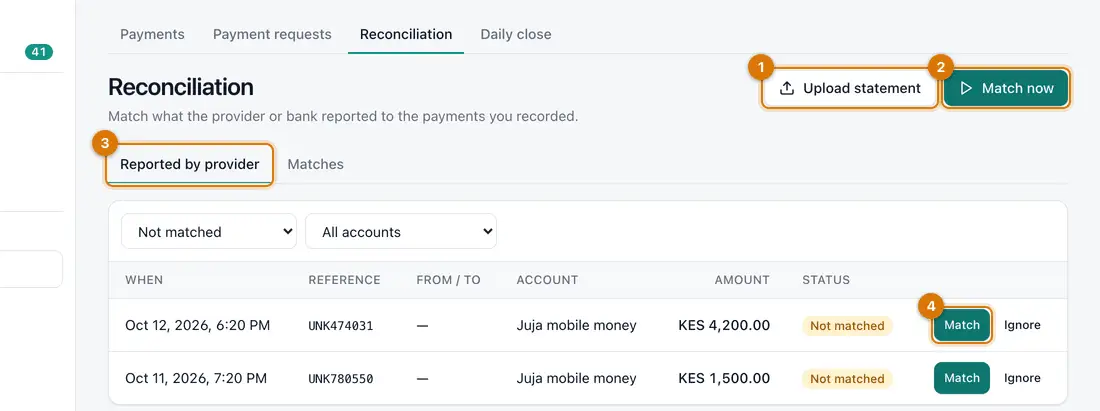
- Upload statement
- Match now
- Statement transactions
- Match and Ignore
You should see: Two lists: the transactions from your statement, and Matches.
-
Click Upload statement. Choose the Account, the Statement type and the Statement file. Click Upload.
You should see: The transactions from your statement appear in the first list. Uploading the same file twice adds nothing twice.
-
Click Match now.
You should see: Ziira pairs each transaction with a payment by code and amount. Matched ones move to Matches.
-
Look at what is left in the first list. Click Match and choose the payment it belongs to. Or click Ignore if it is not a sale, such as a bank charge.

If something goes wrong
Money arrived that matches no sale
Find the sale by customer or time. If the cashier typed a wrong code, click Match and pick the right payment. If there is no sale, tell the owner.
A sale paid by mobile money has no payment
The code was mistyped, or the customer never paid. Ask the cashier for the confirmation message.
The file is refused
Check you chose the right Statement type. Save the file as CSV.
Still stuck? See Fix common problems.