Before you start
- Employees are added, and at least one leave type exists.
Steps
-
Click People > Attendance and leave.
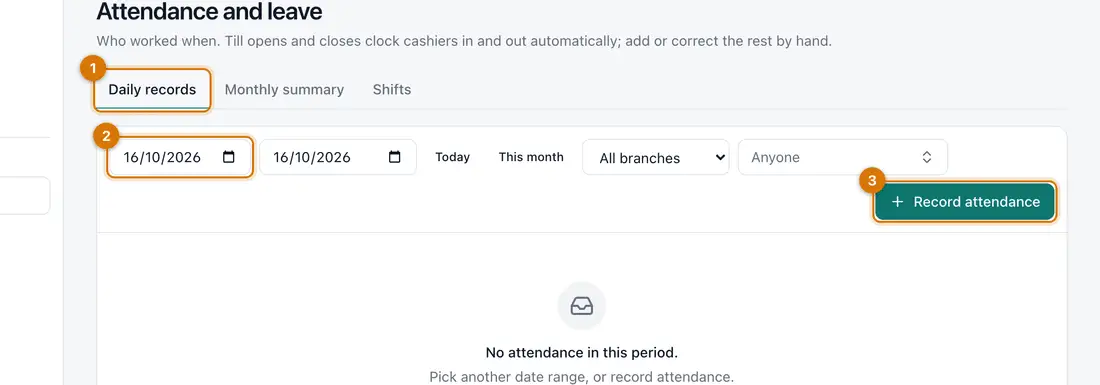
- Tabs
- Date range and branch
- Record attendance
You should see: The Attendance page, with Daily records, Monthly summary and Shifts.
-
Click Record attendance. Choose the Employee and the Date. Type Clock in and Clock out. Add Overtime hours if any. Click Save.
If you leave Hours or Overtime hours empty, Ziira works them out.
-
Click the Monthly summary tab to see each person's days and hours.
-
For leave, click the Leave page, then Request leave. A manager can ask for someone else. Staff leave Employee as Myself.
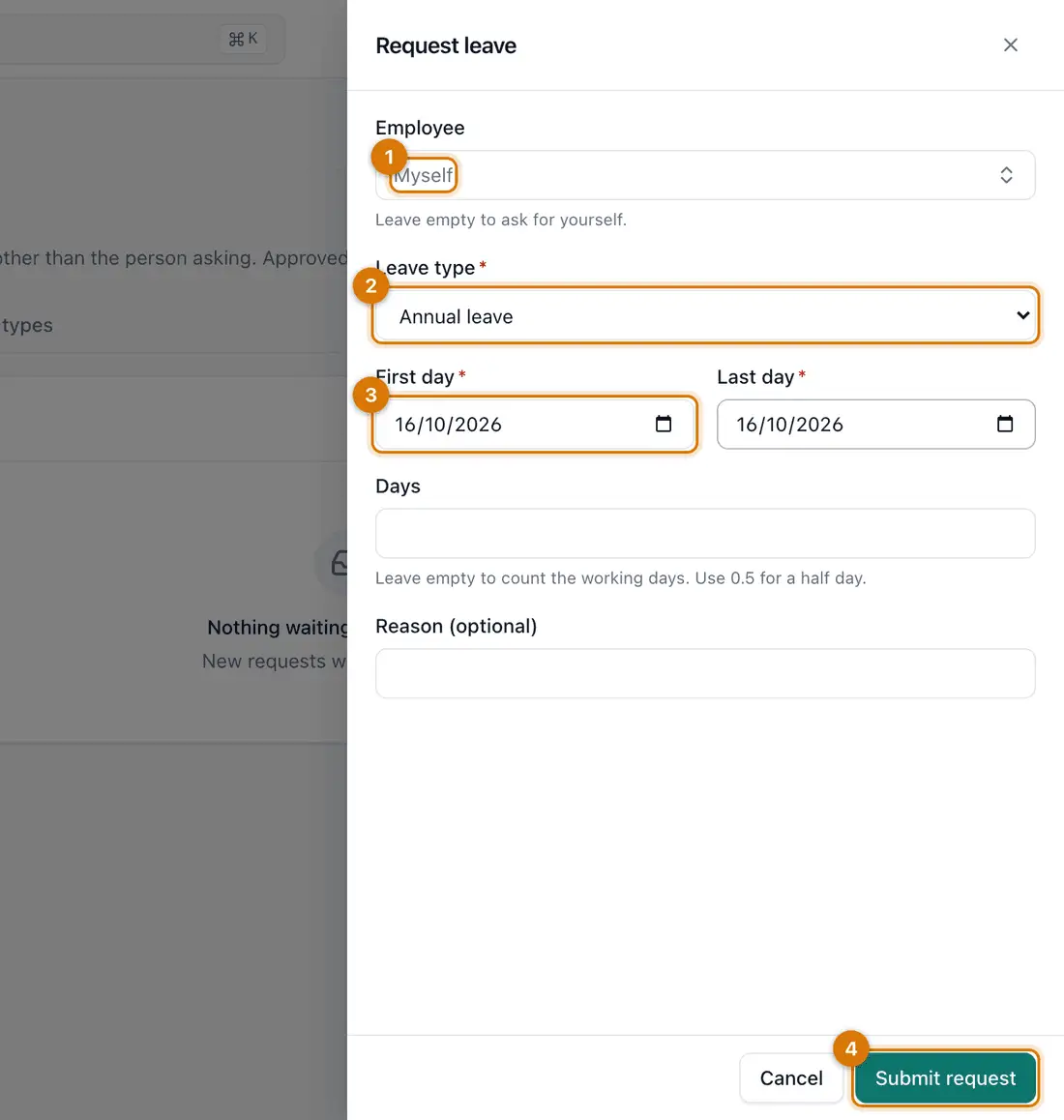
- Employee
- Leave type
- First and last day
- Submit request
-
Choose the Leave type, the First day and the Last day. Leave Days empty to count working days, or type
0.5for half a day. Click Submit request.You should see: The request appears under Requests for someone else to approve.
-
Use the Overview tab to see who is off and the leave balances.


If something goes wrong
Leave counts weekends
Set your days off under Settings > General, in People and payroll.
The clock-in time is wrong
Record the correct time. The change is kept in the history.
I cannot choose a leave type
Add one first on the Leave types tab, for example annual or sick leave.
Still stuck? See Fix common problems.